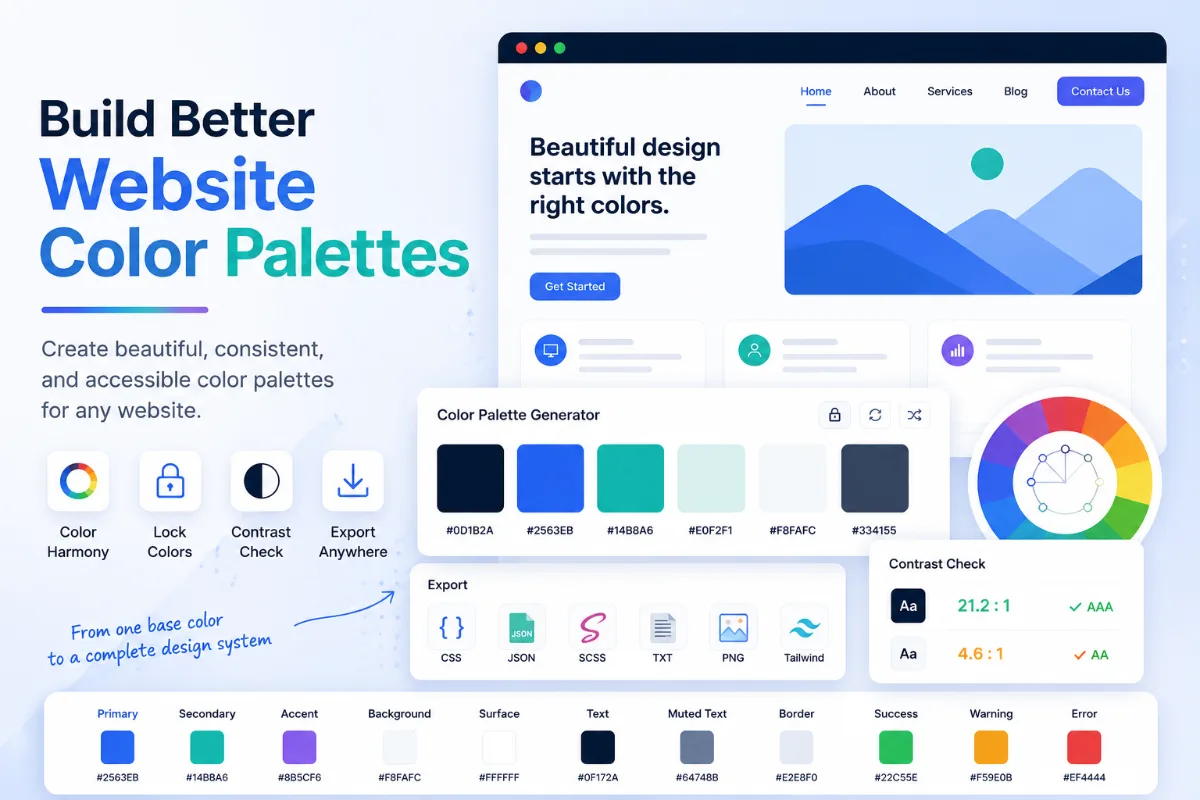
One brand color is rarely enough to design a complete website.
A primary blue may work for the main button, but the interface will also need a darker hover state, a pale selected background, quieter borders, and perhaps a muted variation for secondary elements.
Those related colors can be created as tints, shades, and tones. Each begins with the same base color but mixes it toward a different target.
This guide explains the difference between tints, shades, and tones and shows you how to create a complete color scale from any HEX value with the Color Shades & Tints Generator.
Tints, Shades, and Tones at a Glance
| Color variation | How it is created | Visual result | Common website uses |
|---|---|---|---|
| Tint | Mix the base color with white | Lighter and softer | Subtle backgrounds, selected states, badges, and highlights |
| Shade | Mix the base color with black | Darker and deeper | Hover states, headings, dark surfaces, and stronger borders |
| Tone | Mix the base color with neutral gray | More muted and less intense | Secondary controls, muted UI, borders, and supporting elements |
The base hue still influences every result. A blue tint remains related to blue, but it moves closer to white. A blue shade moves toward black. A blue tone becomes quieter as gray is introduced.
What Is a Tint?
A tint is created by mixing a color with white.
As the amount of white increases, the result becomes lighter. The base color remains recognizable at lower mix percentages, while higher percentages produce pale variations that may appear almost white.
Suppose the base color is:
#2563EB
A 50% tint mixes the blue equally with white and produces approximately:
#92B1F5
Tints are useful when the full base color would be too strong for a large area. They can support:
- Selected navigation backgrounds
- Information panels
- Soft badges and labels
- Hover backgrounds
- Decorative sections
- Subtle borders on light surfaces
A tint is not the same as transparency. A transparent blue allows the color behind it to affect the final appearance. A tint is an opaque color created by mixing the blue with white.
What Is a Shade?
A shade is created by mixing a color with black.
Increasing the amount of black makes the result darker and deeper. Lower percentages create small changes suitable for hover states, while stronger mixtures can support dark surfaces or high-emphasis text.
A 50% shade of #2563EB is approximately:
#133276
Shades are commonly used for:
- Primary-button hover and pressed states
- Dark navigation backgrounds
- Headings based on a brand hue
- Strong borders and separators
- Dark-mode surfaces
- Active or selected controls
Very dark shades can lose some of the character of the base color. If every dark value appears nearly black, reduce the maximum mix amount so the scale retains more of its original hue.
What Is a Tone?
A tone is created by mixing a color with neutral gray.
Gray reduces the color's intensity without pushing it entirely toward white or black. The result usually feels calmer and less saturated than the original.
A 50% tone of #2563EB, mixed with the neutral gray used by the Solvioza tool, is approximately:
#5372B6
Tones are useful for:
- Secondary buttons
- Quiet interface controls
- Muted borders
- Supporting illustrations
- Inactive-looking visual treatments
- Layouts where the original color feels too vivid
A tone can be lighter or darker than the base color depending on the starting color and the gray used in the mixture. Its defining quality is the introduction of gray, not a guaranteed change in brightness.
Tint vs Shade vs Tone: What Actually Changes?
The three variations affect a base color differently:
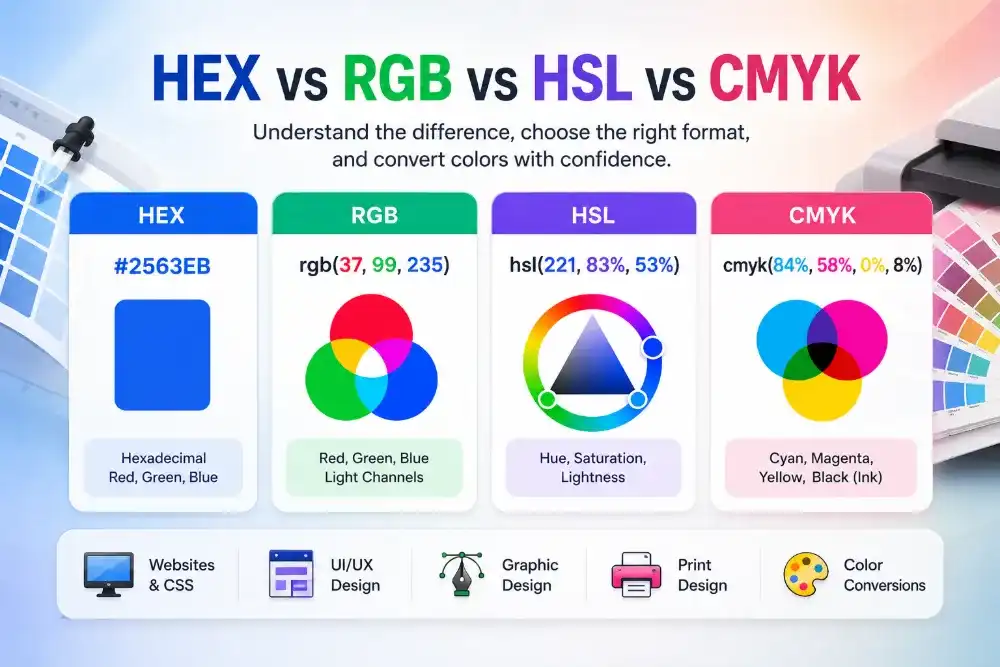
- A tint moves every RGB channel toward 255, which represents white.
- A shade moves every channel toward 0, which represents black.
- A tone moves every channel toward 128, the neutral gray used by this generator.
This creates three related directions from one starting point:
White  <- Tints  <- Base color -> Shades -> Black
                         |
                         v
                       Tones
                    Neutral gray
Tints are not always suitable for text simply because they are light. Shades are not automatically accessible simply because they are dark. The foreground and background still need to be tested together.
How the Color Mixing Calculation Works
The Solvioza generator creates each variation by mixing the RGB channels of the base color with the target color.
The calculation for each red, green, and blue channel is:
Mixed channel =
Base channel x (1 - mix amount)
+ Target channel x mix amount
For a 50% tint, the target is white:
White = rgb(255, 255, 255)
Mix amount = 0.5
Using the red channel of #2563EB, which is 37:
37 x (1 - 0.5) + 255 x 0.5
= 18.5 + 127.5
= 146
The same calculation is applied to green and blue. The final RGB channels are rounded and converted back into HEX.
For shades, the target channels are all 0. For tones, they are all 128.
Different design applications may generate slightly different color scales because they can mix colors in RGB, HSL, OKLCH, or another color space. Solvioza uses direct RGB mixing, so its results are predictable from the original HEX channels.
What Makes a Color Scale Complete?
A complete color scale is not simply a list of lighter colors. It provides enough range to handle the different roles a design requires.
A practical scale may include:
- Very light values for page and component backgrounds
- Light values for selected and hover states
- The original base color for primary actions
- Darker values for hover, pressed, and active states
- Deep values for headings or dark surfaces
- Muted tones for secondary and supporting UI
The scale does not need to contain every generated color. The generator gives you options; the design system should keep the values that have a clear purpose.
A compact website may need six or seven useful variations. A larger design system may keep a broader scale for components, themes, charts, and illustrations.
How to Create a Color Scale From Any HEX Color
- Open the Color Shades & Tints Generator.
- Enter a three-digit or six-digit HEX value as the base color.
- Choose the number of steps you want to generate.
- Set the maximum mix amount.
- Keep Include tones enabled when you also need muted variations.
- Review the tint, shade, and tone scales.
- Switch the displayed values between HEX, RGB, and HSL if needed.
- Copy individual colors, one complete section, or every generated value.
- Choose CSS, JSON, or Plain output for the final handoff.
The tool generates between 3 and 20 steps for each enabled section. Its default setting creates 9 steps with a maximum mix amount of 90%.
You can select the base color visually, type its HEX value, or use Randomize when you want to explore. Reset restores the default blue and the original generation settings.

Number of Steps vs Maximum Mix Amount
These settings control different parts of the scale.
Number of steps controls how many colors appear in each section. More steps create smaller differences between neighboring colors.
Maximum mix amount controls how far the scale moves toward white, black, or gray.
For example, nine tint steps with a maximum mix of 90% gradually approach a color that contains 90% white. Reducing the maximum to 50% keeps every generated tint closer to the base color.
| Goal | Suggested adjustment |
|---|---|
| A small set of clearly different colors | Use fewer steps and a wider maximum mix |
| A detailed design-system scale | Use more steps for smoother progression |
| Keep the brand color recognizable | Reduce the maximum mix amount |
| Create very pale or very dark endpoints | Increase the maximum mix amount |
The best setting depends on how the colors will be used. There is little value in generating 20 steps when users and developers cannot distinguish their roles.
How to Use the Generated Colors in UI Design
Do not assign roles only by appearance. Name each chosen value according to what it does.
A primary-color family might be used like this:
| Color role | Possible source | Example use |
|---|---|---|
| Primary soft | Light tint | Selected navigation background |
| Primary subtle | Medium tint | Information panel or badge |
| Primary | Base color | Main button and links |
| Primary hover | Light shade | Button hover state |
| Primary active | Deeper shade | Pressed or selected state |
| Primary muted | Tone | Secondary component or quiet accent |
This is more maintainable than naming values only as “light blue,” “dark blue,” and “muted blue.” Functional names explain why the colors exist.

Should a Color Scale Use Numbers?
Many design systems label colors with numbers such as 50, 100, 200, and 900. Smaller numbers usually represent lighter values, while larger numbers represent darker ones.
You can map selected output from the generator into a numbered scale:
:root {
  --primary-50: #E9EFFD;
  --primary-100: #D3E0FB;
  --primary-300: #92B1F5;
  --primary-500: #2563EB;
  --primary-700: #1A45A5;
  --primary-900: #0B1E47;
}
These values map to actual RGB tints and shades of #2563EB.
The numbers do not have a universal mathematical meaning. They communicate order within that particular color family.
Keep the base color at a consistent point, such as 500 or 600, across the design system. That makes different color families easier to understand.
Choose HEX, RGB, or HSL Output
The generated colors can be displayed as HEX, RGB, or HSL.
- HEX is compact and convenient for CSS, documentation, and design handoff.
- RGB exposes the individual red, green, and blue channels.
- HSL makes hue, saturation, and lightness easier to inspect.
Changing the display format does not regenerate the scale. It changes how the same colors are written.
If you need to inspect or convert one value in more detail, the HEX and RGB Color Converter provides copyable formats and contrast information.
Check Contrast Across the Scale
A complete color scale still needs accessibility testing.
Each generated card in Solvioza compares its background with black and white, recommends the stronger text color, and shows whether that choice passes WCAG AA for normal text.
This is useful for initial review, but a design may place other foreground colors on the scale. Test those exact combinations with the Color Contrast Checker.
Pay particular attention to:
- Button labels on the base color and its shades
- Body text on pale tints
- Links placed on tinted panels
- Muted text on tones
- Borders against their surrounding surfaces
- Hover, focus, selected, and disabled states
A color can work as a decorative background and still fail as a text color. Assigning a value to one role does not make it suitable for every other role.
Copy the Scale for Design or Development
Solvioza provides several ways to copy the result.
Copy an individual card when you need one color. Copy Section collects every tint, shade, or tone. Copy All Colors combines the complete generated scale in the selected display format.
The Developer Output panel provides:
- CSS: Custom properties for the base color and generated variations
- JSON: Structured HEX, RGB, and HSL data
- Plain: A readable list in the selected display format
CSS output can be placed into a stylesheet:
:root {
  --color-base: #2563EB;
  --color-tint-10: #3B73ED;
  --color-shade-10: #2159D4;
  --color-tone-10: #2E66E0;
}
The exact variable percentages depend on the chosen number of steps and maximum mix amount.

How This Tool Differs From a Palette Generator
A tint, shade, and tone generator creates variations of one base color by mixing it with white, black, or gray.
A broader Color Palette Generator can build relationships between different hues, including complementary, analogous, triadic, and tetradic palettes.
Use the shades and tints tool when you already have a base color and need a complete family around it. Use the palette generator when you need to discover additional hues that work with the base.
If you need to combine your base with a specific second color rather than white, black, or gray, the Color Mixer is the more direct choice.
Common Mistakes When Building a Color Scale
Using only tints. A collection of pale values does not provide the darker states needed for buttons, text, and active controls.
Generating too many nearly identical steps. Every retained color should have a recognizable role.
Assuming a 50% mixture means 50% opacity. Mixing changes the actual RGB channels and produces an opaque color.
Using the palest tint for low-contrast text. Very light values are often better as backgrounds than foreground content.
Making every shade almost black. Reduce the maximum mix amount when the scale loses the character of the base hue.
Treating generated colors as automatically accessible. Contrast depends on the foreground and background combination.
Mixing naming systems. Choose percentage-based, numbered, or functional names and document the relationship clearly.
Build a Complete Scale From Your HEX Color
Tints move a color toward white, shades move it toward black, and tones move it toward neutral gray. Together, they provide light, dark, and muted options without abandoning the original base color.
The Color Shades & Tints Generator can create 3 to 20 variations for each section, control the maximum mix amount, compare black and white text, and produce CSS, JSON, or plain output.
Generate broadly at first, then keep only the colors that solve a real design problem. A useful color scale is not the one with the most swatches. It is the one that makes future design decisions more consistent.