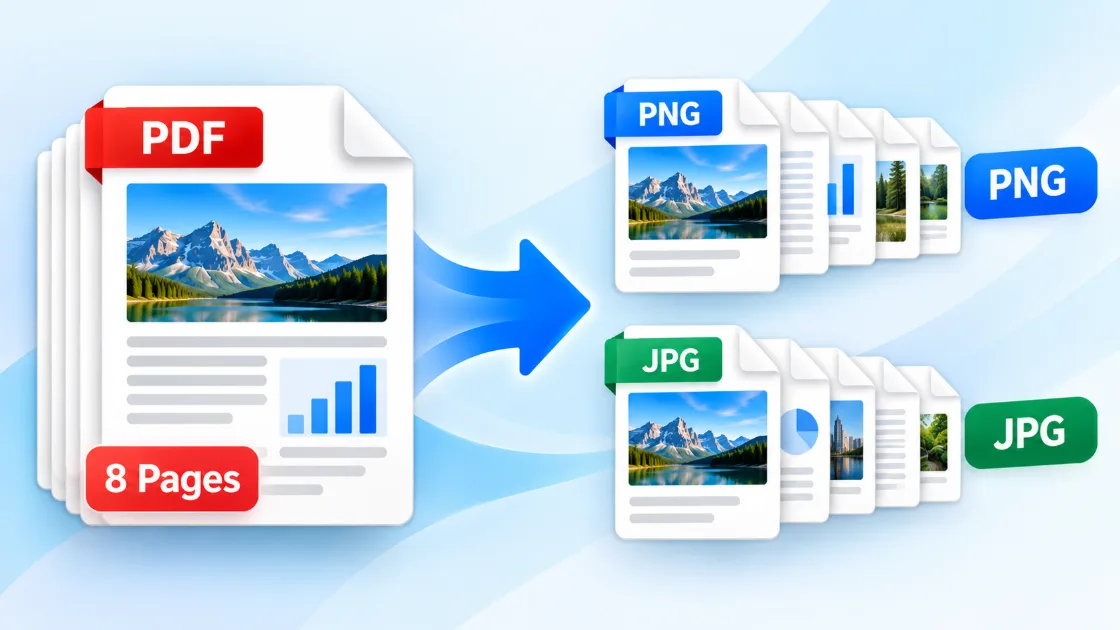
Convert PDF to Images Online: Export Every Page as PNG or JPG
Solvioza PDF to Images Converter turns each page of a PDF document into a separate image. Use it to convert PDF to PNG for crisp, lossless page captures or convert PDF to JPG when you need smaller files that are easier to share. You can choose the output resolution, adjust JPG quality, preview every converted page, download one page at a time, or save the complete set in a ZIP archive.
The tool works directly in your browser and supports documents containing portrait pages, landscape pages, or a mixture of both. Each exported image keeps the original page proportions, so a landscape PDF page is not forced into a portrait frame.
How to Convert PDF Pages to Images
For help choosing between PNG and JPG, selecting a suitable resolution, and checking the exported files, follow the complete guide to converting PDF pages into images.
- Upload your PDF: Drag the document into the upload area or click the uploader to browse your device.
- Choose PNG or JPG: Select PNG for lossless output or JPG for a smaller download.
- Set the resolution: Increase the scale when fine text, diagrams, zooming, or printing quality matters.
- Adjust JPG quality: When JPG is selected, balance visual quality against file size using the quality control.
- Convert the document: Select Convert to Images and allow your browser to render each page.
- Review the pages: Check page orientation, image dimensions, and visual clarity in the responsive gallery.
- Download your images: Save a single page or select Download ZIP to get every converted page together.
PDF to PNG vs PDF to JPG
Both formats are useful, but the right choice depends on the document and how you plan to use the images.
| Format | Best for | Main advantage | Consideration |
|---|---|---|---|
| PNG | Text, forms, diagrams, slides, screenshots | Lossless output keeps sharp edges clear | Usually produces larger files |
| JPG | Photos, scanned magazines, quick sharing | Smaller files with adjustable quality | Compression may soften fine text |
Choose the Best Image Resolution
Resolution controls the pixel dimensions of every exported page. A higher setting creates a sharper image, but it also uses more memory and produces a larger download. The ideal setting depends on the destination.
- Standard resolutionGood for thumbnails, messaging, quick previews, and pages viewed at normal screen size.
- Balanced resolutionA practical default for readable documents, websites, presentations, and everyday sharing.
- High resolutionBest for small text, detailed charts, cropping, zooming, archival copies, and printing.
Why Convert PDF Pages into Images?
An image is often easier to insert, preview, publish, or send than a complete PDF. When you need one combined PDF instead of separate images, use PDF Merger to join documents while keeping their pages in PDF format. To assemble JPG, PNG, or WebP files into a new document, use the Images to PDF Converter. Common image-export workflows include:
- Presentations: Add a specific PDF page to PowerPoint, Google Slides, or another presentation tool.
- Web publishing: Create page previews, article illustrations, document thumbnails, or social media graphics.
- Selective sharing: Send one relevant page without sharing confidential or unnecessary pages from the full document.
- Forms and receipts: Turn a completed page into a widely supported image for upload to another service.
- Design and review: Import PDF pages into image editors, annotation tools, mood boards, or review workflows.
- Document previews: Generate visual snapshots for catalogs, file browsers, knowledge bases, and archives.
Private, Browser-Based PDF Conversion
Your PDF is processed locally on your device after the required page-rendering library loads. The document is not uploaded to the Solvioza backend, stored in temporary server folders, or sent to a third-party conversion API. Local processing can also avoid the upload delay associated with large documents.
Device security still matters. Avoid processing sensitive documents on public computers, review downloaded files before deleting the original PDF, and save confidential images in a trusted location.
Works with Portrait and Landscape PDF Pages
The converter reads each page independently. Portrait pages remain portrait, landscape pages remain landscape, and mixed-orientation documents display naturally in the result gallery. The gallery automatically selects a balanced number of columns based on the total page count to reduce unused space.
PDF to Image Conversion on Phones and Tablets
The responsive uploader supports touch devices, and image settings open in a mobile-friendly panel. Long document names wrap within the card, conversion progress remains visible, and page previews adapt to smaller screens. Actual speed depends on the PDF length, selected resolution, and available device memory.
Supported Documents and Practical Limits
The uploader accepts PDF files up to 100 MB. Very long PDFs or high-resolution output may require substantial browser memory, especially on older phones. Password-protected documents may need to be unlocked before they can be rendered, and damaged or incomplete PDF files may fail to open.
Tips for Better PDF-to-Image Results
- Use PNG for text: Lossless PNG is usually the safest choice for forms, tables, diagrams, and screenshots.
- Use JPG for photos: JPG can significantly reduce the size of image-heavy pages.
- Increase resolution only when needed: Higher settings improve detail but take longer and use more memory.
- Check every page: Review orientation and clarity before sharing or deleting the source document.
- Keep the original PDF: Exported images do not preserve searchable text, links, forms, document structure, or selectable content.