Resize Facebook Cover Photos Online with Better Framing, Correct Banner Size, and No Image Stretching
The Solvioza Facebook Cover Photo Resizer helps you turn any image into a clean Facebook cover banner without stretching, guessing dimensions, or fighting awkward cropping. Upload a JPG, PNG, BMP, GIF, TIFF, HEIF/HEIC, WebP image, place it inside the cover frame, zoom where needed, and download a ready-to-use banner image directly from your browser.
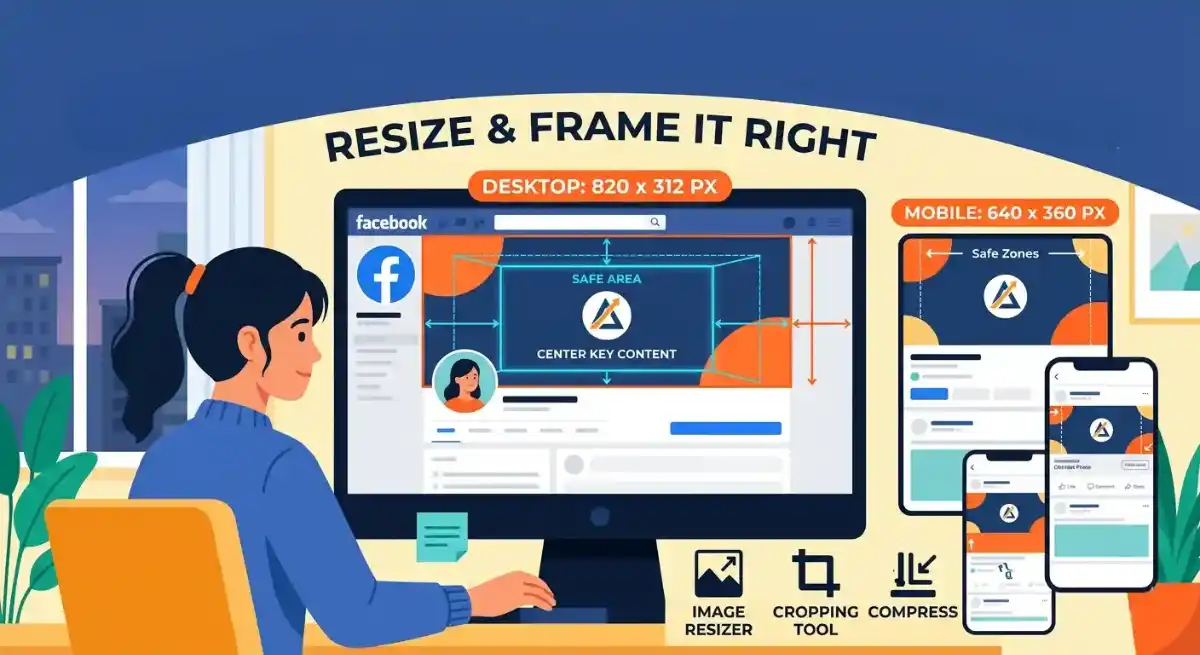
The default export size is 820 x 312 px, which is commonly used for Facebook cover photos. The tool also includes useful presets for Facebook event covers and Facebook group covers, so you can prepare different Facebook banner formats from the same simple workspace.
This tool is designed for creators, small businesses, page owners, community managers, freelancers, and everyday users who want a better-looking Facebook cover image without installing design software. Everything runs in the browser, so your image does not need to be uploaded to a server.
Why Use This Facebook Cover Photo Resizer?
- Correct Facebook banner size: Export your image at 820 x 312 px for a standard Facebook cover photo.
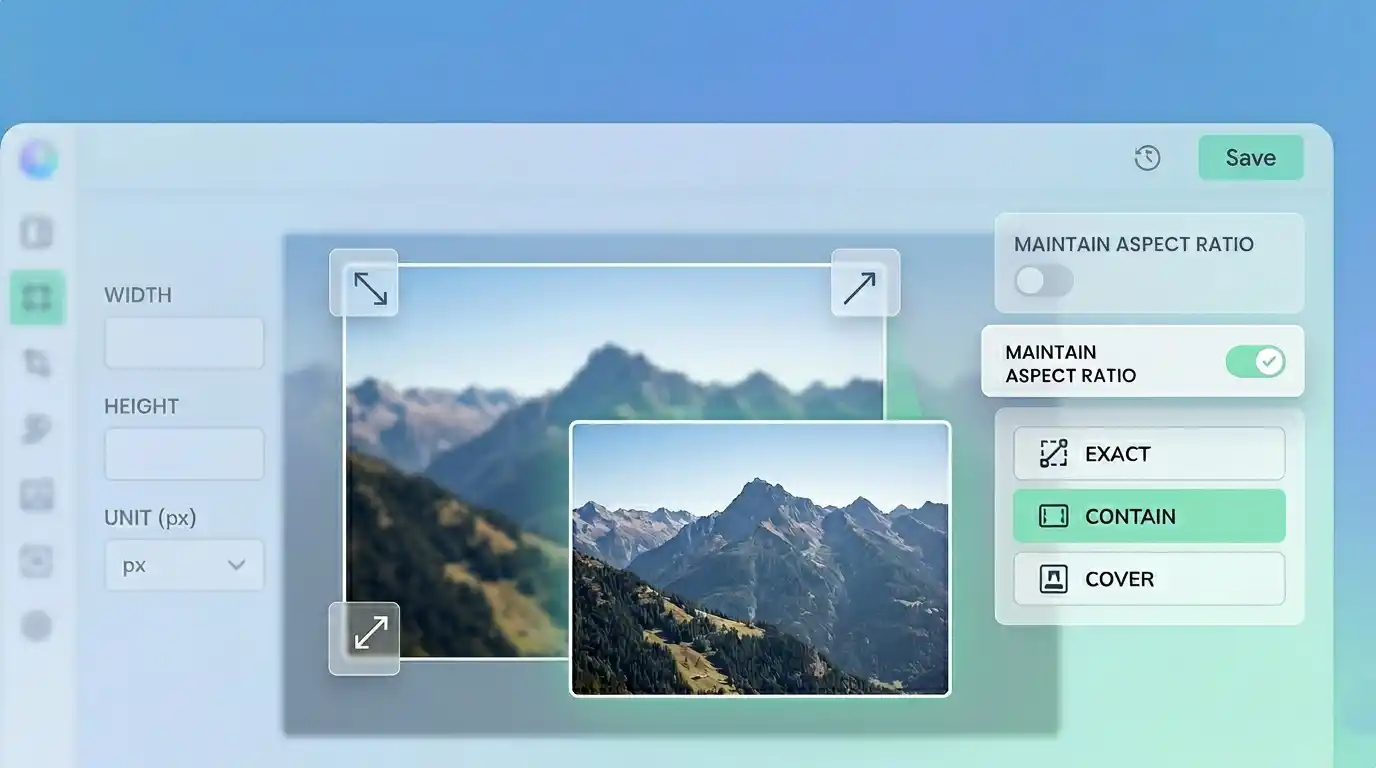
- No stretched images: The tool crops and positions your image inside the cover ratio instead of distorting it.
- Drag and zoom control: Move the image and zoom in or out to keep faces, logos, and text framed properly.
- Safe-center guide: Use the center overlay to keep important details away from areas that may be cropped on different screens.
- Private browser workflow: Your image is processed locally with canvas and does not need backend upload.
Available Facebook Cover Presets
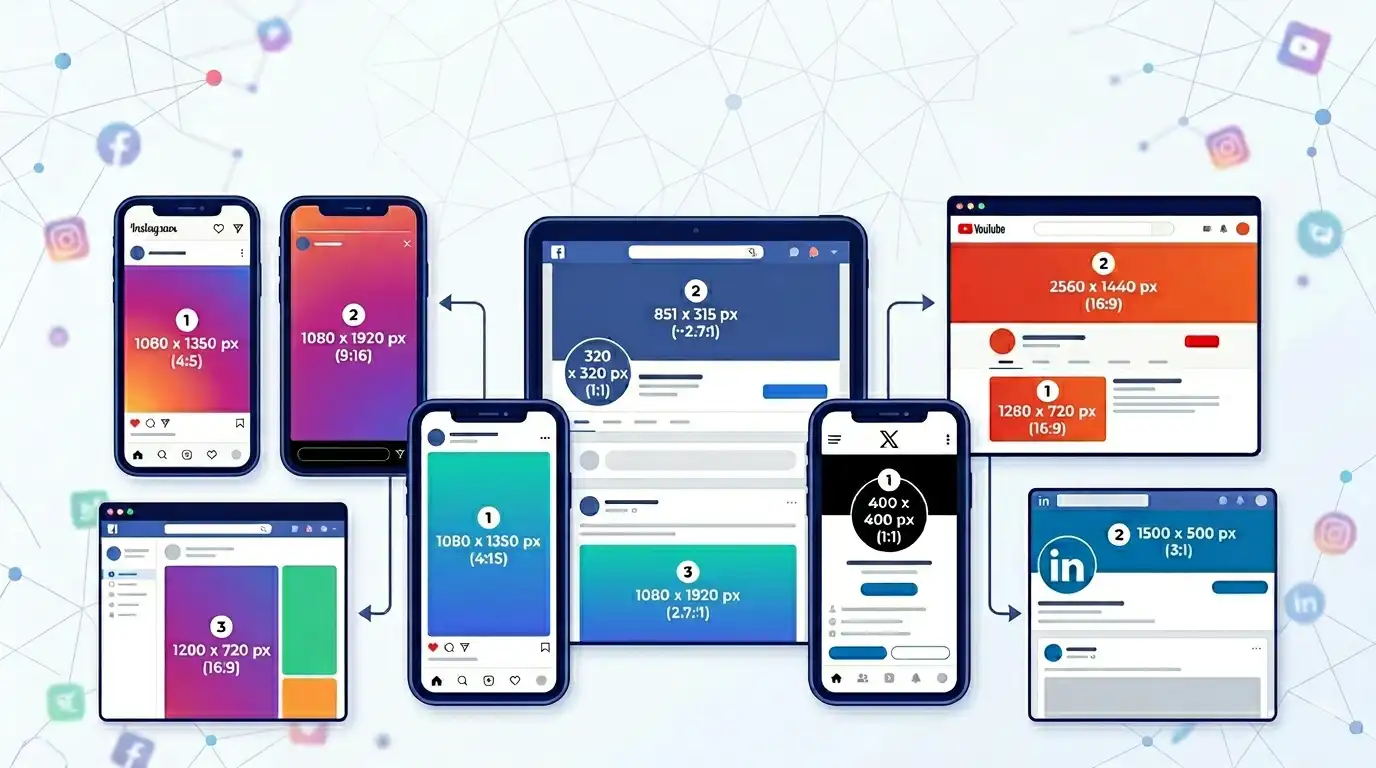
Different Facebook surfaces use different banner proportions. This tool includes practical presets so you can create the version you need without manually entering dimensions.
| Preset | Output Size | Best For |
|---|---|---|
| Facebook Cover Photo | 820 x 312 px | Personal profiles and page cover images. |
| Facebook Event Cover | 1200 x 628 px | Event pages, announcements, and promotional banners. |
| Facebook Group Cover | 1640 x 856 px | Community groups and larger header visuals. |
How to Resize a Facebook Cover Photo
- Upload your image: Choose a JPG, PNG, BMP, GIF, TIFF, HEIF/HEIC, WebP file from your device.
- Select a preset: Use the default Facebook cover size or switch to event or group cover dimensions.
- Position the image: Drag the image inside the cover frame to place the important parts where they belong.
- Adjust zoom: Zoom in or out until the image fills the banner area without stretching.
- Check the safe center: Keep key text, logos, and faces near the center for better desktop and mobile display.
- Download the result: Export the finished Facebook cover as JPG, PNG, or WebP.
Best Uses for This Tool
Business Pages
Prepare clean branded banners for Facebook pages, product launches, services, and seasonal promotions.
Personal Profiles
Crop travel photos, portraits, artwork, and lifestyle images into a polished cover photo.
Events and Campaigns
Create event banners with better framing for announcements, webinars, sales, and community activities.
Facebook Groups
Make group header images that look cleaner and keep important details visible in the center area.
More Image Tools for Facebook and Social Media
After creating your Facebook cover photo, you may also want to prepare other images for your profile, website, or social media workflow. These related Solvioza tools can help you finish the job faster.
Facebook Profile Picture Resizer
Need to adjust your profile image too? Try our Facebook Profile Picture Resizer to crop and export a profile-ready image.
Image Resizer
Want custom dimensions for other platforms? Use our Image Resizer to resize images for websites, social posts, banners, and thumbnails.
Image Cropper
Need more manual framing before resizing? The Image Cropper helps crop photos, graphics, and banners with more control.
Image Compressor
Want to reduce file size before uploading? Use our Image Compressor to make cover photos and other images lighter.
Important Facebook Cover Photo Tip
Facebook may display cover photos differently on desktop and mobile. A banner that looks perfect on one screen can be cropped slightly on another. For the best result, avoid placing important text, logos, faces, or product details too close to the edges. Keep the most important content near the center of the cover image.
Pro Tips from Solvioza
- Start with a large image: Higher-resolution source images usually give cleaner results after cropping.
- Avoid edge text: Keep words and logos away from the far left, right, top, and bottom edges.
- Use JPG for photos: JPG is often a practical choice for photographic cover images.
- Use PNG for graphics: PNG can be better for sharp graphics, text-heavy designs, or transparent artwork.
- Preview before downloading: Check the safe-center guide before exporting your final Facebook banner.
- Prepare related images together: Pair this tool with our Facebook Profile Picture Resizer, Image Resizer, Image Cropper, and Image Compressor for a fuller image workflow.