Compress PDF Files Online
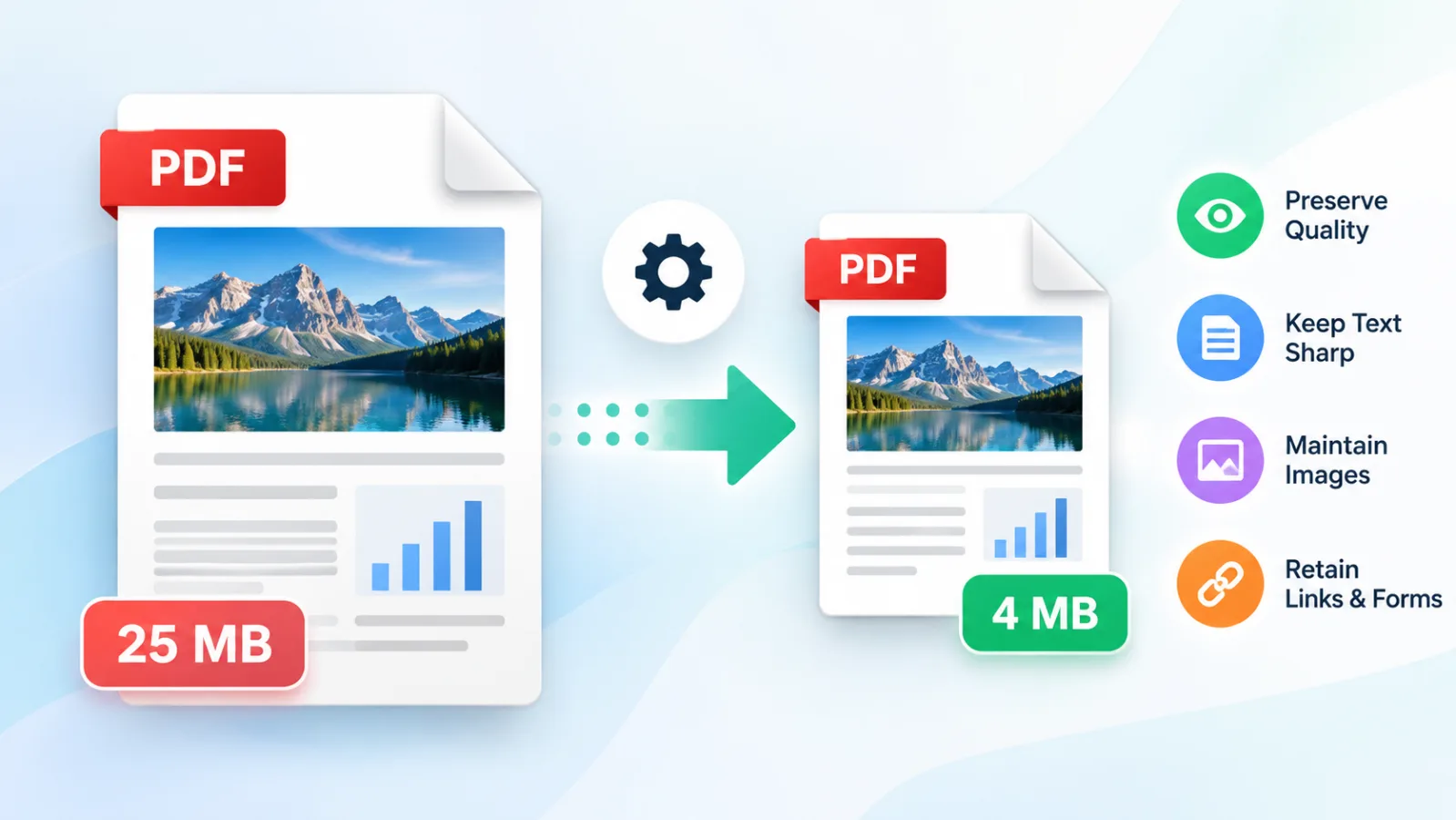
Solvioza PDF Compressor helps you reduce PDF file size online while keeping the document usable. Add one PDF or compress multiple PDF files in a batch of up to 20 files and 100 MB combined, choose image quality with a simple slider, and download each result separately or collect completed PDFs in one ZIP archive.
The compressor applies supported document-structure optimizations and recompresses eligible raster images according to the selected quality. Selectable text remains text, while vector graphics are kept as vectors where supported by the source document and compression process. Page order, page dimensions, and orientation remain unchanged.
How to Compress a PDF
- Add PDF files: Drop PDFs into the upload area or browse your device. You can select one file or add a batch.
- Review file details: Check the filename, page count, original size, and detected raster-image information shown on each card.
- Choose image quality: Move the slider toward Smaller file for stronger reduction or Better quality for lighter compression.
- Start compression: Select Compress all PDFs. If some files are already complete, only newly added or failed files are processed.
- Follow progress: The status moves through font, image, document-structure, and finalization stages for the active PDF.
- Compare the result: Review the compressed size, percentage saved, and total number of bytes removed.
- Remove unwanted results: Delete any completed PDF you do not want included in the batch download.
- Download your files: Save PDFs individually or choose Download all to create one ZIP containing the remaining results.
- Verify important documents: Open downloaded files and check text, images, links, forms, and page orientation before sharing.
One PDF Compressor for Single Files and Batches
Use the same workspace to compress one PDF or reduce the size of several documents in sequence. Each PDF has its own status, result size, savings figure, Download button, and removal control. Completed files stay available when you add more PDFs, and the next compression run targets only the new items. If several source documents must become one file, combine them with PDF Merger before compressing the finished document.
- Batch PDF compressionAdd up to 20 PDFs and process the pending files without repeating completed work.
- Measured savingsSee the original size, compressed size, percentage saved, and exact storage reduction.
- Flexible downloadsDownload one result immediately, remove files you do not need, or package the remaining PDFs as a ZIP.
- Pending-only runsAdd more PDFs after compression without processing completed items again.
What the Image Quality Slider Changes
The 1–100 slider controls the treatment of eligible embedded raster images. Lower settings reduce image dimensions more aggressively and use stronger JPEG compression, usually producing a smaller PDF with softer photographs or scans. Higher settings retain more image detail but may save less space. The default 70% setting provides a practical balance for many image-based PDFs.
Not sure how far to move the slider? Learn how to compress a PDF without losing quality, including which settings to try and what to inspect before sharing the result.
| Slider range | Expected result | Useful for | Tradeoff |
|---|---|---|---|
| 1–40% | Strongest image reduction | Email limits, previews, reference copies | Fine image detail may look softer |
| 41–75% | Balanced file size and clarity | Reports, forms, scans, everyday sharing | Moderate image recompression |
| 76–100% | Lighter image compression | Documents where image detail matters | Smaller or no size reduction |
How PDF File Size Is Reduced
PDF size can come from photographs, scanned pages, screenshots, embedded fonts, duplicated resources, stream encoding, and document-object overhead. This browser-based PDF size reducer uses more than one method so image-heavy and text-heavy files can benefit in different ways.
- Embedded-image recompression: Eligible RGB JPEG images and supported Flate images are decoded, resized, and re-embedded according to the selected image quality.
- Font optimization: For supported embedded TrueType fonts, the compressor attempts to retain required glyphs while removing unused font data.
- Stream recompression: The compression engine attempts to rewrite compatible PDF streams with efficient lossless settings.
- Object-stream optimization: The engine generates object streams and optimizes compatible cross-reference data.
- Smallest-result selection: Multiple compression candidates are generated and compared before the smallest useful result is selected.
- Original-file fallback: If every attempt is equal to or larger than the source, the original file remains the download.
What Stays Usable After Compression
This tool does not render complete PDF pages as flat screenshots. It works with supported PDF resources so selectable text remains text and vector content is kept in vector form. This is especially important for contracts, statements, reports, application forms, and documents that readers may need to search or copy from. If pages need to be reordered, rotated, removed, or extracted, make those changes first with PDF Organizer.
| Document element | Compression behavior | What to expect |
|---|---|---|
| Text | Kept as PDF text | Remains selectable and searchable when it was selectable in the source |
| Vector graphics | Not rasterized | Lines, shapes, and vector logos remain sharp when zoomed |
| Raster images | May be resized and recompressed | Quality and size depend on the slider setting and source encoding |
| Pages | Order, size, and rotation retained | Portrait, landscape, and mixed page dimensions remain in place |
| Links, forms, annotations | Not intentionally flattened | Support varies; verify critical interactive features after download |
| Digital signatures | Document bytes are rewritten | An existing cryptographic signature becomes invalid |
Why Some PDFs Compress More Than Others
Compression results depend on how the source PDF was created. A scanned PDF containing large photos or uncompressed RGB images can shrink substantially. A small text document may benefit mainly from font and structure optimization. A PDF previously exported with optimized images may have little removable data. When your source material is a set of photos or scans, create the document with the Images to PDF Converter, then compress the completed PDF if necessary.
- Often compresses wellScans, photo reports, image-to-PDF files, presentation exports, and documents with oversized embedded fonts.
- May change very littleAlready optimized PDFs, tiny text files, documents using only standard fonts, and files whose images use unsupported color or mask layouts.
If 70% quality does not reduce an image-heavy PDF, try a lower value. The displayed No raster images status means the quality slider has no detected raster image to adjust.
Compress PDF Without Uploading
PDF reading, image processing, font optimization, document rewriting, size comparison, and ZIP creation happen on your device. Files are not sent to the Solvioza backend, stored temporarily on a conversion server, or transferred to a third-party PDF compression service.
Local PDF compression can be useful for financial statements, internal reports, school documents, forms, and personal records that you prefer not to upload. Browser processing still depends on your device, so avoid sensitive work on a shared computer and clear downloaded files when you are finished.
File Limits and Important Compatibility Notes
You can add up to 20 PDF files, subject to a combined batch limit of 100 MB. Actual capacity depends on available browser memory, document complexity, embedded-image dimensions, page count, and device performance. Large image-based documents may require considerably more working memory than their stored file size. If only certain pages are needed, use Split PDF first so unnecessary pages are not included in the compression job.
- Password-protected PDFs: Unlock encrypted documents before adding them to the compressor.
- Complex interactive documents: Open the result and verify forms, annotations, links, scripts, accessibility data, and attachments when they are essential.
- Browser memory: Process fewer large PDFs at once or close unused tabs if compression fails on a low-memory device.
- Already optimized files: A lower quality setting may help image-based files, but some PDFs cannot be reduced further without rebuilding pages.
- Source backup: Keep the original until you have reviewed and accepted the compressed version.
Tips for Better PDF Compression
- Start near 70%: Use the default for a balanced result, then move lower if the file must meet a strict upload or email limit.
- Judge the actual document: Check photographs, screenshots, small labels, signatures, and diagrams after stronger compression.
- Finish page edits first: Merge, split, rotate, or remove pages before running the final compression.
- Remove before ZIP download: Delete completed files you do not want included, then choose Download all.
- Keep meaningful filenames: Compressed downloads include a descriptive suffix so they are easier to distinguish from originals.