Pick Exact Colors from Images Online
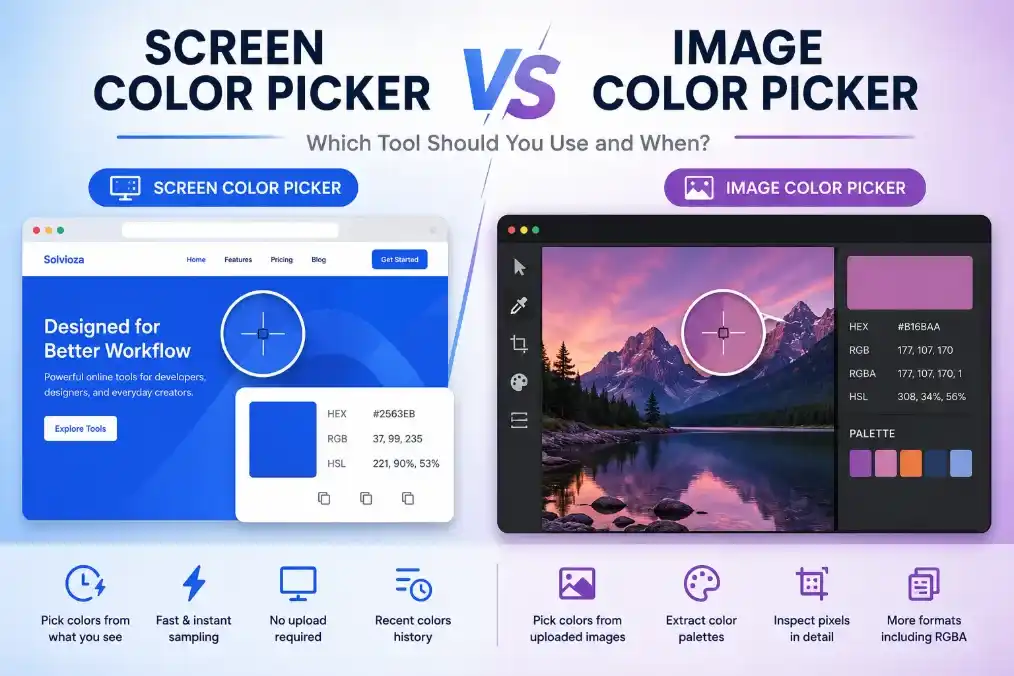
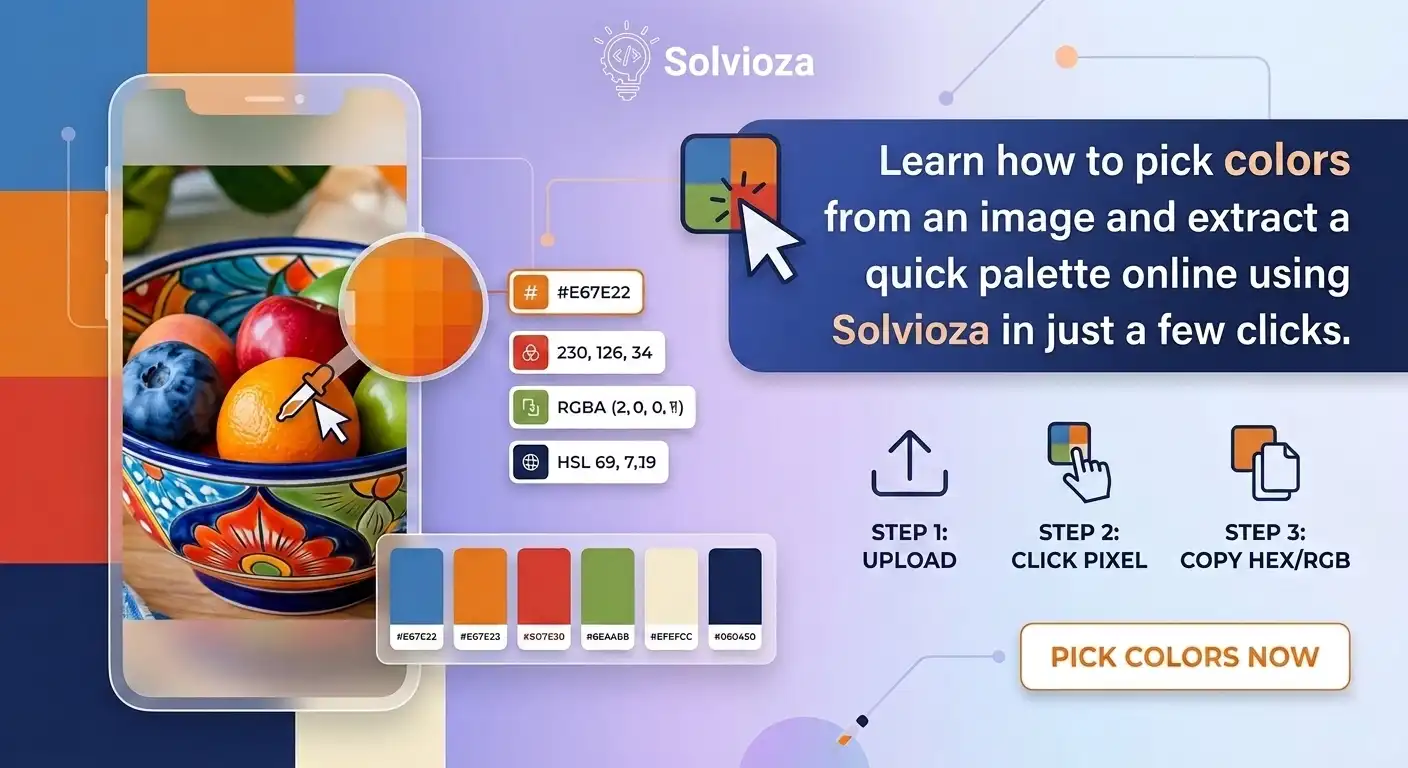
Image Color Picker by Solvioza helps you upload an image and select exact pixel colors directly from it. Click any point on your image to get accurate HEX, RGB, RGBA, and HSL color values that you can copy instantly.
This color picker from image tool makes it easy to identify and copy exact colors from photos, screenshots, logos, and design assets. It also shows the closest recognizable color name beside the selected HEX code, so a sampled pixel is easier to describe in design notes and CSS documentation.
Use it to sample colors from screenshots, logos, product photos, website mockups, UI designs, illustrations, social media graphics, and brand references. The tool works locally in your browser, so your image does not need to be uploaded to a server.
What You Can Do with This Image Color Picker
Pick Pixel Colors
Click directly on the uploaded image to select the exact color from that pixel.
Copy Color Codes
Copy HEX, RGB, RGBA, and HSL values for use in CSS, design tools, editors, and brand documents.
Preview Neighbor Pixels
Use the small live pixel grid near the cursor to inspect the selected pixel and nearby colors more precisely.
Extract a Simple Palette
Generate a quick set of dominant colors from your image when you need a starting palette.
Identify Closest Color Names
See a readable color name beside the selected HEX code, such as Lavender, Royal Blue, Black, or Pale Green.
Closest Color Name for Picked Pixels
When you click a pixel, Solvioza now shows more than the color code. The selected color area displays the HEX value with the closest recognizable color name beside it, which helps when you need to describe an image color in plain language.
Color names are descriptive and can vary between sources, so the name should be treated as the nearest useful label rather than a universal standard. For a dedicated HEX color name lookup with similar named colors, use the Color Name Finder.
Extract Color Palettes from Images
Besides selecting individual pixels, you can generate a simple color palette from your uploaded image. This helps designers, developers, marketers, and content creators quickly identify dominant colors for branding, UI design, presentations, and social media graphics.
Use the palette feature when you want an image palette generator, need to extract color palette from image files, or want to find dominant colors from a photo, screenshot, logo, or visual reference.
Supported Image Formats
You can upload common image formats including JPG, JPEG, PNG, and WebP. The image is displayed in a local canvas so you can sample colors quickly without extra setup.
Color Formats Included
| Format | Best For |
|---|---|
| HEX | CSS, design systems, brand colors, and quick color sharing. |
| RGB | Digital design, screen colors, image editing, and development workflows. |
| RGBA | CSS colors that need transparency or alpha values. |
| HSL | Adjusting hue, saturation, and lightness in a more human-friendly way. |
Useful for Designers and Developers
The tool is helpful when you need to match a color from an existing image, inspect a design screenshot, identify a logo color, recreate a palette, or grab a color for CSS. Because each value is copyable, you can move from image inspection to implementation quickly.
If you need to prepare the image before picking colors, you may also find the Image Cropper, Image Resizer, and Image Compressor useful.
Private Browser-Based Color Picking
Image Color Picker processes your uploaded image in the browser using canvas. This keeps the workflow fast and private because the image does not need backend processing. It is suitable for personal photos, client references, unpublished designs, and brand assets.
How to Use Image Color Picker
- Upload your image: Choose a JPG, PNG, or WebP file from your device.
- Move over the image: Use the live pixel grid to preview the pixel under your cursor and nearby colors.
- Click a pixel: Select the exact color you want from the image and review its closest color name.
- Copy the value: Copy the HEX, RGB, RGBA, or HSL color format you need, or use the color name as a readable reference.
- Use recent colors: Reuse colors from the recent color history during the same session.
- Extract a palette: Generate a simple dominant color palette if you need multiple colors from the image.
Color Picking Tips
- Use the pixel grid for precision: The live grid helps you avoid picking the wrong edge pixel or anti-aliased color.
- Pick from clean areas: For logos or flat graphics, click inside a solid area rather than near shadows or borders.
- Check nearby pixels: Photos and compressed images can contain many slightly different colors, so nearby pixels may vary.
- Use HEX for CSS: HEX values are usually the fastest option for website styling and brand references; use the closest color name for notes and handoff context.
- Use HSL for adjustments: HSL is helpful when you want to make a color lighter, darker, or more saturated.
- Generate a palette for inspiration: Use palette extraction when you want multiple colors from the same image instead of a single pixel.