Split PDF Pages into Separate Files Online
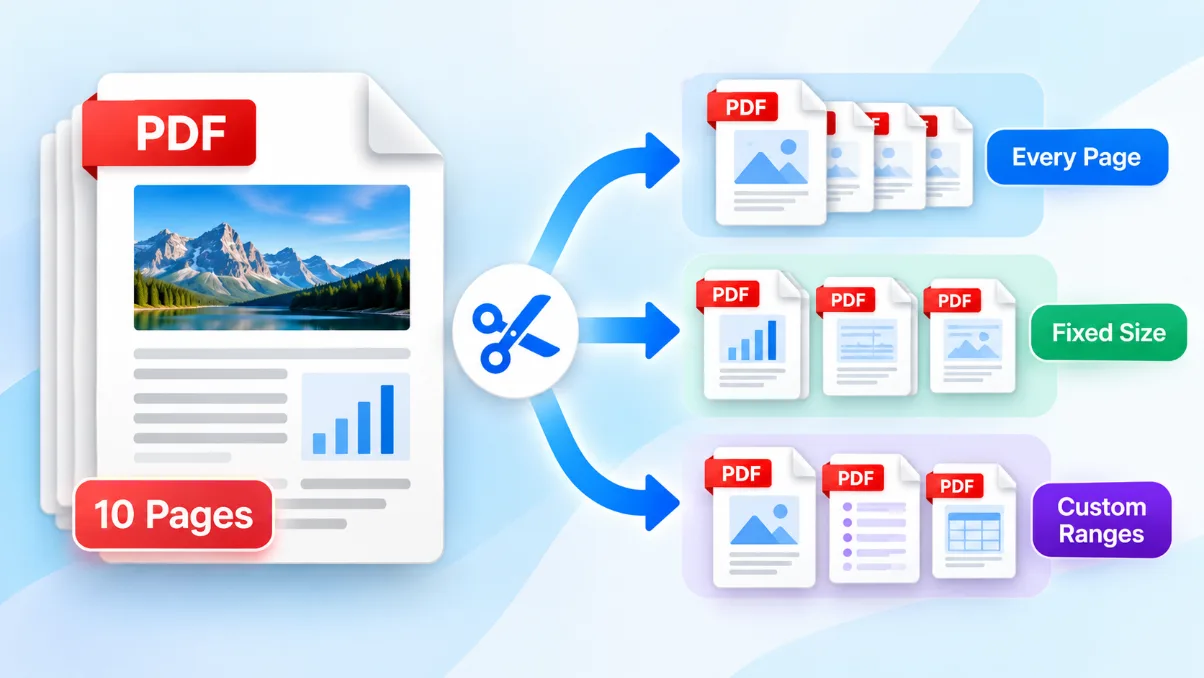
Solvioza Split PDF helps you divide one PDF document into smaller PDF files directly in your browser. Separate every page, create files with a fixed number of pages, or enter custom page ranges for the exact sections you need. The tool checks the document, shows its page count, creates the requested files, and prepares a direct PDF or ZIP download without requiring desktop software.
Splitting is useful when a large document contains chapters, forms, invoices, statements, certificates, or selected pages that need to be shared separately. Each output contains copied PDF pages rather than screenshots. If you need to combine documents instead, use PDF Merger. To export pages as PNG or JPG files, use the PDF to Images Converter. If your source pages are JPG, PNG, or WebP images, first create a document with the Images to PDF Converter.
How to Split a PDF
- Choose your PDF: Drop one document into the upload area or select Choose PDF File to browse your device.
- Review the file: Confirm the filename, file size, and detected number of pages.
- Select a split mode: Choose Every page, Fixed size, or Custom ranges according to the output you need.
- Enter the split details: Set the number of pages per file or type comma-separated page ranges when the selected mode requires it.
- Choose a filename prefix: Keep the suggested prefix or enter a clear name for the output files.
- Create the files: Select Split PDF and follow the local processing progress.
- Download the result: Save a single PDF directly or download the ZIP archive containing multiple PDF files.
For detailed examples of every-page splitting, fixed-size groups, and custom ranges, read how to split a PDF into separate pages or files.
Choose the Right PDF Split Mode
Every Page
Creates one single-page PDF for every page in the source document. A 12-page document produces 12 PDF files in one ZIP archive.
Fixed Size
Groups consecutive pages using the same maximum number of pages per file. If pages do not divide evenly, the final PDF contains the remaining pages.
Custom Ranges
Creates one PDF for each page or range entered. This option is best for chapters, selected forms, or sections with different lengths.
If the pages should remain in one document but need to be reordered, rotated, or removed, use the PDF Organizer instead.
How Custom Page Ranges Work
Enter page numbers and ranges separated by commas. For example, 1-3, 4-6, 8 creates three output files: one containing pages 1 through 3, one containing pages 4 through 6, and one containing page 8. The order of the entries controls the order of files in the resulting ZIP.
- Single pages: Enter a number such as 5 to create a PDF containing only page 5.
- Continuous ranges: Enter the lower page first, such as 10-14. Reversed ranges such as 14-10 are rejected.
- Separate output files: Each comma-separated entry becomes its own PDF rather than being combined into one document.
- Repeated pages: A page may appear in more than one range when the same page is needed in multiple output files.
- Valid page limits: Every number must fall within the detected page count of the uploaded PDF.
Output Filenames and ZIP Downloads
The filename prefix identifies every generated file. Custom ranges add labels such as pages-1-3 or page-8, while fixed-size and every-page outputs use their corresponding page numbers. Unsupported filename characters are removed automatically, and the correct .pdf or .zip extension is added for the download.
When the selected settings produce one output, the browser downloads that PDF directly. When two or more files are created, the tool packages them into one ZIP archive so they can be saved together. Extract the ZIP using your device's built-in archive support before opening or sharing the individual PDFs.
Original Page Size, Orientation, and Quality
Pages are copied into new PDF documents without rendering them as images. Portrait pages remain portrait, landscape pages remain landscape, and mixed page dimensions can be retained across the generated files. The splitter does not intentionally resize pages, lower image quality, run OCR, compress content, or add watermarks.
If an extracted file is still too large, review it first and then reduce its size with the PDF Compressor.
Private Browser-Based PDF Splitting
PDF reading, page copying, file creation, and ZIP packaging take place on your device. The source document is not uploaded to the Solvioza backend, stored temporarily on a server, or sent to a third-party conversion service. After the required page libraries have loaded, the split operation does not depend on a backend document-processing service.
Supported PDFs, Size Limit, and Errors
The tool accepts one PDF up to 100 MB. The browser parses the document before displaying the split controls, so a .pdf filename alone does not guarantee that a file is readable. Processing speed and the practical document size depend on page count, page complexity, available memory, and the device being used.
- Wrong file type: Select a document that is actually in PDF format.
- Empty or damaged PDF: A file without readable pages cannot be split.
- Password protection: Encrypted and password-protected PDFs must be unlocked before use.
- Invalid ranges: Remove empty entries, use numeric page values, put the lower number first, and stay within the document's page count.
- Browser memory: Large or complex files may exceed available memory, especially when creating many outputs on an older phone.
Split PDFs on Phones and Tablets
The upload area, file details, split modes, range controls, output settings, progress, and download action adapt to narrow screens. No drag-based page editing is required. Enter custom ranges using the device keyboard, or choose Every page and Fixed size for quicker touch-friendly workflows.
Tips for Reliable PDF Splitting
- Confirm the page count: Make sure the detected total matches the document you intended to select.
- Plan custom ranges first: Write down chapter or section boundaries before entering several ranges.
- Use descriptive prefixes: Choose a filename that makes the generated parts easy to identify without exposing sensitive information.
- Allow for the final group: With Fixed size, the last file may contain fewer pages than the selected amount.
- Keep the source PDF: Retain the original until you open every result and confirm page order, orientation, and content.
- Verify before sharing: Extract ZIP downloads and review the individual PDFs before submitting or distributing them.