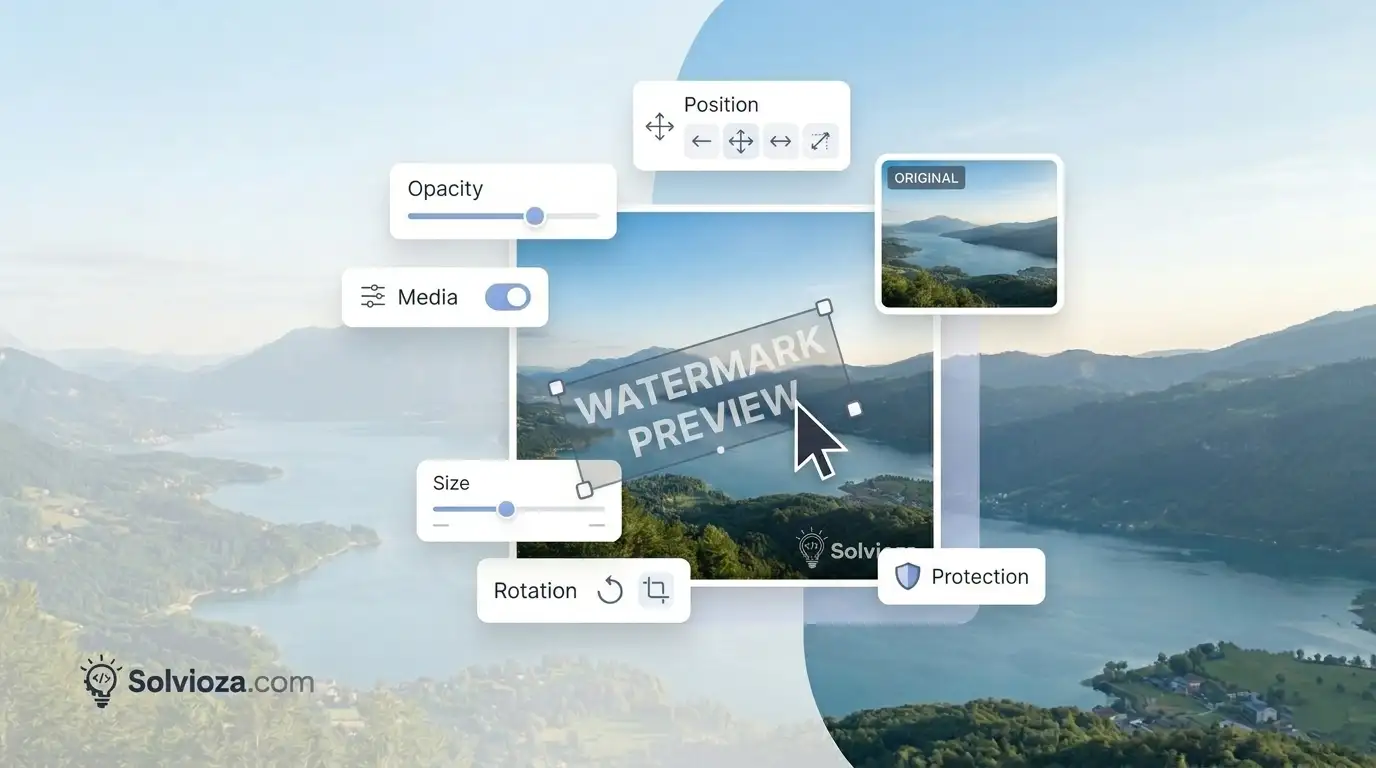
Add Text or Logo Watermarks to Images Online
Image Watermark by Solvioza helps you add text watermarks, logo watermarks, and repeated tiled watermarks to JPG, PNG, and WebP images directly in your browser. You can preview every change live, adjust the watermark style, and download the final result without uploading your image to a server. For a complete walkthrough, read our image watermarking guide.
Use it for branding photos, protecting preview images, adding creator signatures, marking product images, or preparing watermarked files for social media, client review, online stores, and websites. If you need to resize images before watermarking, you can also use the Image Resizer. Our image resizing guide covers the main sizing options, while the social media image size guide helps with platform-specific dimensions.
Watermark Types You Can Create
Text Watermark
Add custom text such as your name, brand, username, copyright notice, website URL, or client preview label.
Logo Watermark
Upload a PNG, JPG, or WebP logo and place it over your image while preserving transparency where supported.
Watermark Customization Features
The tool includes practical controls for making your watermark subtle, visible, centered, branded, or repeated across the full image.
| Control | What It Does |
|---|---|
| Font Size | Increase or decrease the size of text watermarks for small signatures or large visible marks. |
| Font Family | Choose from multiple common fonts to match your brand, content style, or image design. |
| Text Color | Pick a custom text color for better contrast against light or dark images. |
| Bold and Italic | Make text watermarks stronger, softer, or more signature-like with style toggles. |
| Opacity | Control watermark transparency so it can be subtle, balanced, or highly visible. |
| Rotation | Rotate text or logo watermarks for diagonal signatures, draft marks, or tiled protection. |
| Logo Scale | Resize logo watermarks while keeping the original logo proportions. |
| Position Presets | Quickly place the watermark at top left, top right, center, bottom left, or bottom right. |
| Drag Positioning | Move the watermark directly on the preview for precise placement. |
| Edge Margin | Adjust spacing from image edges when using corner or edge-based watermark placement. |
| Tiled Watermark | Repeat text or logo watermarks across the whole image for stronger visual protection. |
| Tile Gap | Control the spacing between repeated watermarks in tiled mode. |
Single Image and Batch Watermarking
You can watermark one image or upload multiple images for batch processing. When working with multiple files, use Apply to all images to keep the same watermark across the whole batch, or turn it off to customize the selected image separately.
The selected image list is scrollable, so larger batches stay manageable while the preview and download actions remain easy to access. If your batch images are very large, compressing them afterward with the Image Compressor can make them easier to upload or share. See our image compression guide for quality-conscious settings.
Live Preview Before Download
Every watermark change updates the canvas preview, including font size, opacity, rotation, logo scale, tile gap, color, and position. This makes it easier to check how the watermark looks before exporting the final image. If you need to remove unwanted edges or reframe an image first, try the Image Cropper. The image cropping guide offers practical framing advice.
Best Image Formats for Watermarked Images
JPG
Good for photos and smaller shareable image files. Includes quality control.
PNG
Useful for sharp graphics, screenshots, and images where clean detail matters.
WebP
A modern format with strong compression and quality control for web use. Learn more in our guide to the WebP image format.
For multiple watermarked images, you can download all processed files together as a ZIP package. If you need to switch formats before or after watermarking, the Image Converter can help. Compare the main options in our image format guide.
Private Browser-Based Processing
Image Watermark uses browser canvas to process your files locally. Your images do not need to be uploaded to a backend server, which makes the workflow faster and more private for personal photos, business assets, product images, and client preview files.
How to Add a Watermark to an Image Online
- Upload your image: Select one or multiple JPG, PNG, or WebP images from your device.
- Open settings: Choose a text watermark or upload a logo watermark.
- Customize the watermark: Adjust font size, color, opacity, rotation, logo scale, position, or tiled spacing.
- Preview the result: Check the live preview and drag the watermark if you want a custom position.
- Download your image: Export the selected image or download all batch images as a ZIP file.
Tips for Better Image Watermarks
- Use lower opacity for subtle branding: Around 20% to 40% opacity often looks cleaner on photos.
- Use center or tiled placement for stronger protection: Corner watermarks are cleaner, but center or tiled watermarks are harder to remove.
- Choose readable contrast: Use light text on dark images and dark text on light images when visibility matters.
- Rotate carefully: A small rotation can look professional, while heavy rotation works better for draft or preview marks.
- Use transparent logo files: PNG or WebP logos with transparency usually produce the cleanest branded watermark.
- Check each batch image: If images have different backgrounds or compositions, customize selected images separately before downloading.