PDF Merger Online: Combine Files in Your Preferred Order
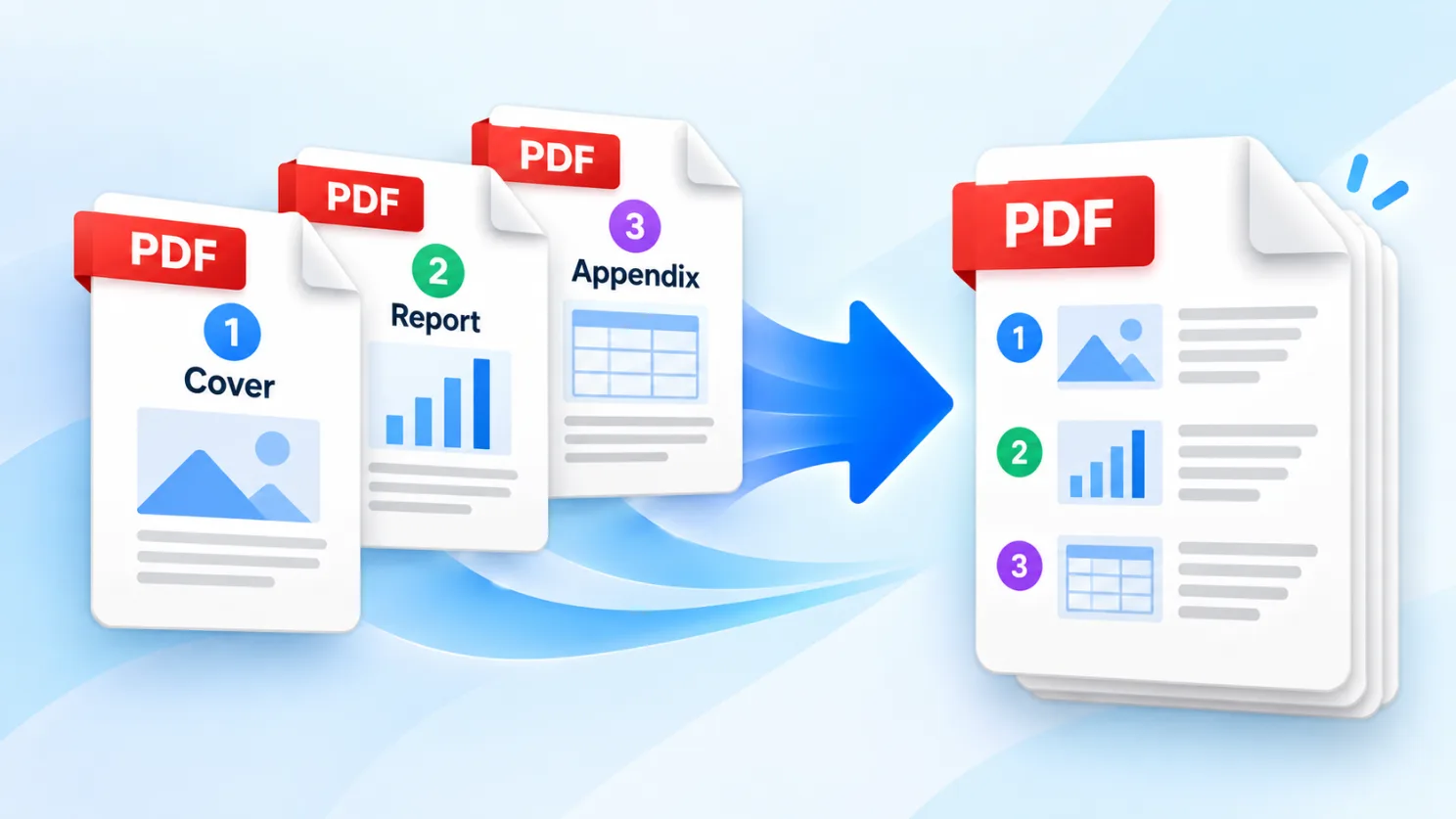
Solvioza PDF Merger helps you combine two or more PDF documents into one ordered file. Add several PDFs at once, include more files later, check the page count of every document, arrange the list in the sequence you need, choose an output filename, and download the completed document when it is ready.
The merge runs locally in your browser. Each source document keeps its internal page order, while the order of documents follows the list displayed in the workspace. Portrait, landscape, and mixed-size pages can be combined without forcing them onto one standard page size.
How to Merge PDF Files
- Add your PDFs: Drop two or more PDF documents into the upload area, or select Choose PDF Files to browse your device.
- Review each document: Check the filename, file size, and detected page count before merging.
- Add more when needed: Use Add More PDFs to extend the list without starting over.
- Arrange the document order: Drag files on desktop or use Move Up and Move Down to place every document correctly.
- Choose a filename: Keep the suggested name or enter your own. The tool adds the .pdf extension when it is omitted.
- Merge the files: Select Merge PDFs and follow the reading, page-copying, and document-creation progress.
- Download the result: Review the output filename, page count, and file size, then select Download Merged PDF.
For a closer walkthrough of file preparation, document order, and final checks, read how to merge PDF files into one PDF.
Why Combine PDFs into One Document?
A single ordered PDF is often easier to submit, review, distribute, and archive than several attachments. Merging is useful whenever related documents need to travel together. If your source pages are JPG, PNG, or WebP files, use the Images to PDF Converter to turn them into a PDF first.
- Applications and evidencePlace a form, cover letter, certificates, and supporting records into one file.
- Reports and appendicesCombine a report with charts, references, appendices, or approval pages.
- Invoices and receiptsGroup related financial documents for accounting, reimbursement, or record keeping.
- Scans and chaptersJoin separately scanned sections, exported chapters, or downloaded documents.
How PDF Order and Page Order Work
The numbered list controls the final sequence. If a three-page report appears first and a two-page appendix appears second, the output contains all three report pages followed by both appendix pages. Pages inside each source PDF are not shuffled or reversed. Drag files on desktop or use Move Up and Move Down on phones and keyboards. Separate internal identifiers also let you add the same PDF more than once.
Original Page Sizes and Orientation
Pages are copied without converting them to images or normalizing them to A4, Letter, or another fixed size. Portrait pages remain portrait, landscape pages remain landscape, and differently sized pages can coexist in the same output. If you need separate PNG or JPG files instead of a combined document, use the PDF to Images Converter. Open the merged download and review page order, orientation, and visible content before submitting it elsewhere.
What the Merge Preserves
The generated document contains copied pages in the selected order. Visible page content, dimensions, and rotation are retained. The tool does not compress pages, run OCR, edit content, add passwords, or convert the document to another format.
If the combined document is too large, compress the PDF after verifying the merged file.
Private, Browser-Based PDF Merging
PDF reading and merging take place on your device. Source files are not uploaded to the Solvioza backend, placed in temporary server storage, or sent to a third-party PDF service. The download is created locally by your browser. Avoid confidential work on shared computers and retain the originals until you verify the result.
Supported PDFs, Limits, and Errors
You can combine up to 20 PDF files with a maximum combined input size of 100 MB. Every file is parsed before entering the ready list, so a PDF extension alone cannot make a damaged or unrelated file valid.
- Unsupported files: Choose a PDF that the browser can successfully parse.
- Empty or damaged PDFs: Files without readable pages cannot be added.
- Protected PDFs: Password-protected and encrypted documents must be unlocked first.
- Browser memory: Large or complex documents may exceed available memory, particularly on older phones.
Merge PDFs on Phones and Tablets
The workflow adapts to narrow screens, including 320-pixel-wide devices. Long filenames remain contained, totals stay visible, and ordering does not depend on dragging. Use the Up and Down buttons beneath each file and the remove control when a document does not belong in the list. Speed depends on page count, complexity, input size, and available memory.
Tips for a Reliable PDF Merge
- Check the numbered list: The displayed document order becomes the final PDF order.
- Review page counts: An unexpected count can reveal that the wrong file was selected.
- Use a descriptive filename: Identify the document without exposing sensitive details.
- Merge unlocked originals: Remove passwords first and keep a secure copy of each source.
- Verify the download: Open the result and check every page before sharing or deleting originals.