Convert Images Online Without the Usual Friction
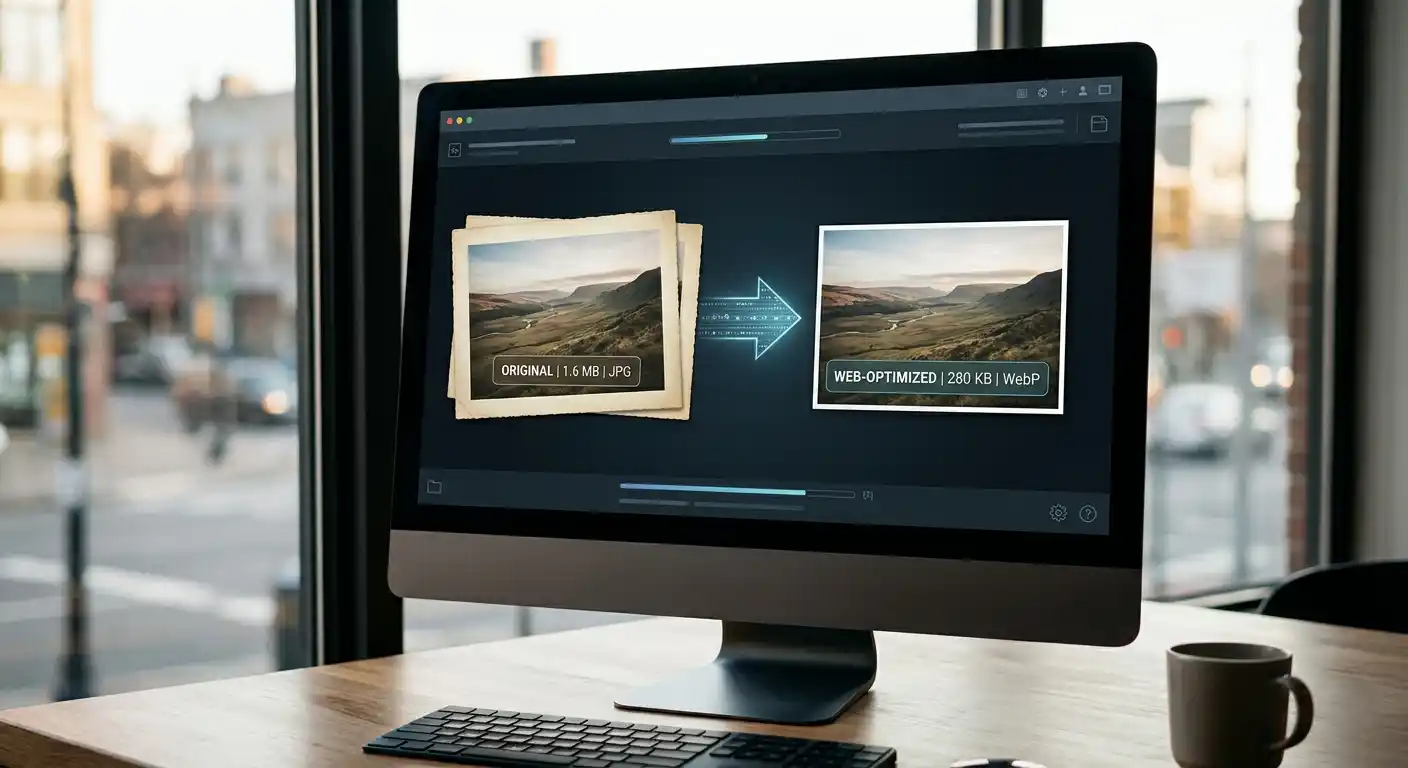
At Solvioza, we built this Image Converter for people who want a cleaner, more practical way to change image formats online. Sometimes you just need to turn a PNG into JPG. Sometimes you need to convert a full batch into WebP, reduce dimensions, and download everything together. This tool is designed for both kinds of work.
For a direct conversion, use the JPG to PNG Converter, PNG to JPG Converter, JPG to WebP Converter, or WebP to JPG Converter.
You can upload one image or several, choose a target format, resize before export, adjust quality where it makes sense, and download the result one by one or as a ZIP. That means you are not limited to a basic upload-and-convert flow. You get a more useful workspace for real tasks like preparing website images, cleaning up product photos, creating lighter files for sharing, or standardizing a folder of mixed image types.
If you are looking for a simple way to convert images online, change a photo format, or handle a batch more efficiently, this tool is built to make that process easier without making it feel technical.
Why People Prefer This Image Converter
A lot of online image converters are fine for quick one-off jobs, but they often feel limited the moment you need better control. We focused on the details that actually make image conversion smoother.
-
Single and Batch Conversion in One Place Convert one file carefully or work through multiple images in the same queue without starting over each time.
-
Better Control Before Export Resize by width, height, dimensions, or percentage before converting so the output is closer to what you actually need.
-
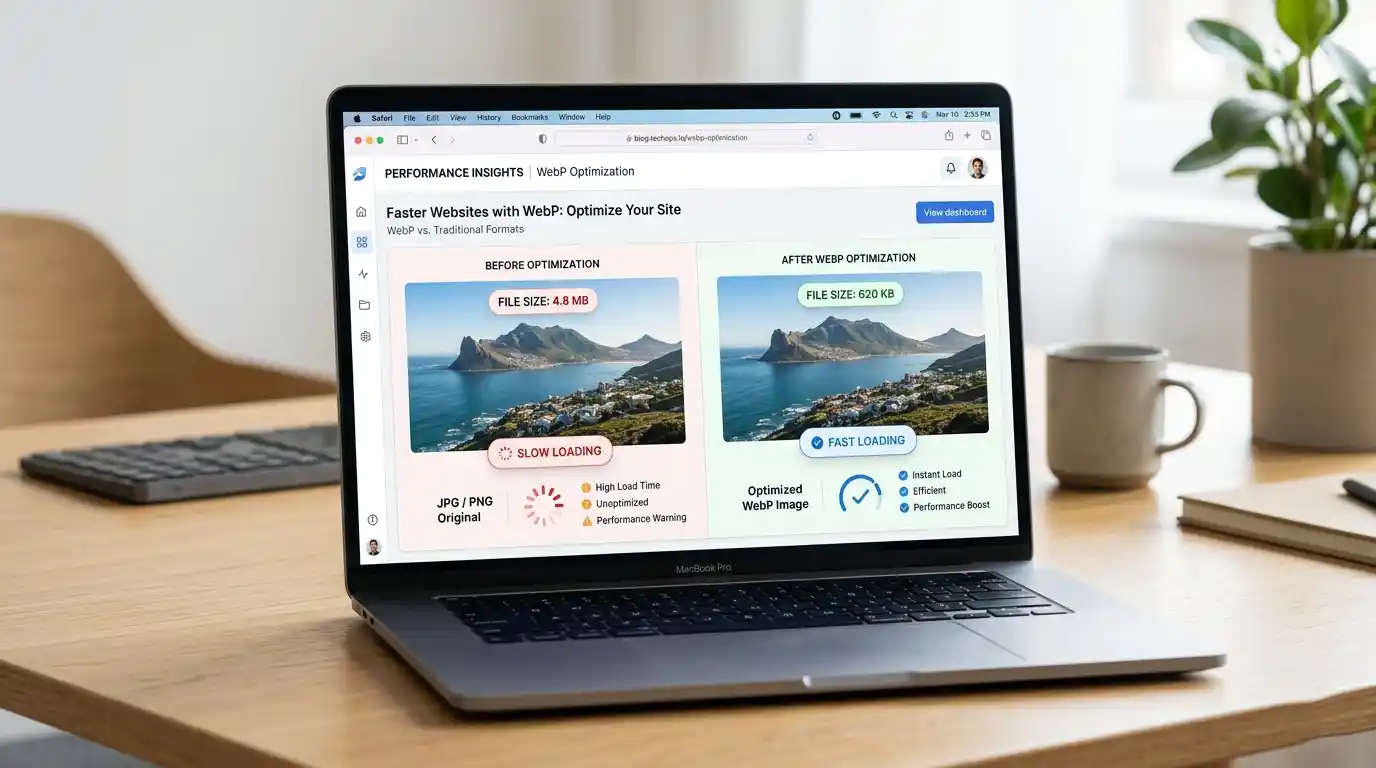
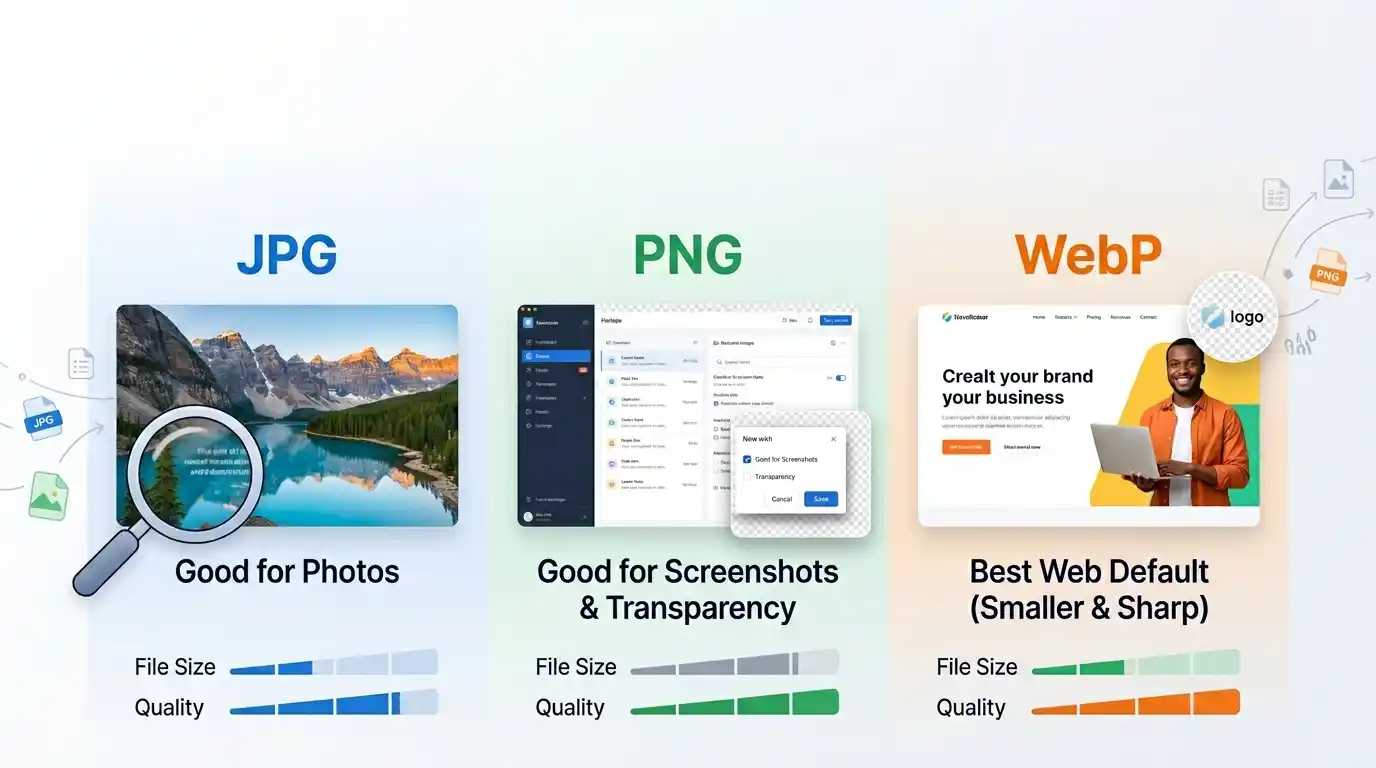
Practical Format Options Choose the format that fits the job, whether that means a widely compatible JPG, a transparent PNG, or a lighter web-friendly format. If you are unsure, see our image format comparison.
-
Quality Settings Where They Matter When file size matters, you can fine-tune quality instead of relying on a hidden default. That is especially useful for website images and shared assets.
-
A More Useful Workflow Than Basic Converters Many tools only let you upload, convert, and leave. Ours gives you file-by-file visibility, flexible settings, and a more organized queue, which makes it more useful for repeated work.
-
ZIP Download for Batch Jobs When you convert several images, downloading everything together is simply easier and tidier.
What You Can Do with This Tool
- Convert image formats online: Switch between common formats depending on where the image will be used.
- Resize before converting: Useful when the destination does not need the original dimensions.
- Adjust quality: Helpful for lighter output when you want to reduce file size without guessing.
- Handle mixed batches: Keep a queue of images organized and work through them more efficiently.
- Set JPG background color: Prevent awkward transparent areas when exporting to JPG.
- Download one file or all files: Save images individually or as a ZIP when working with batches.
Common Ways People Use Our Image Converter
Website Image Preparation
Convert large uploads into more practical web formats and resize them before publishing.
Product Photo Cleanup
Standardize file types and make product images easier to upload across stores and marketplaces.
Content and Social Media Assets
Prepare lighter, cleaner images for posts, thumbnails, blogs, and promotional visuals.
Everyday Format Changes
Handle simple tasks like converting PNG to JPG, saving an image in a different format, or preparing files for sharing.
| Need | Good Format Choice | Why |
|---|---|---|
| General photo sharing | JPG | Widely supported and practical for everyday use. |
| Transparency or crisp graphics | PNG | A better fit when transparent areas or lossless output matter. |
| Web-focused image delivery | WebP | Often a strong balance between visual quality and file size. |
| Modern compact output | AVIF | Useful when supported and when smaller files are a priority. |
| Basic icon or utility export | ICO or BMP | Helpful for certain simple asset workflows. |
How to Use the Image Converter
- Upload your images: Add one file or several files to the queue.
- Choose the output format: Pick the target type for one image or apply the same format to all.
- Adjust settings if needed: Resize the image, set quality, or choose a background color for JPG export.
- Convert: Process a single image or run the whole batch.
- Download the result: Save files individually or download everything together as a ZIP.
A Better Fit for Real Work
We do not claim this tool is better just because it looks polished. It is better in a more practical way. You can see file details, work through a queue, convert images one by one or in bulk, resize before export, fine-tune quality, and keep the workflow organized from upload to download.
That combination makes a difference when you are doing more than a one-time format change. It helps when the job includes multiple files, different output needs, or a little more care about the final result.
Who This Tool Is For
This tool is useful for creators, marketers, bloggers, developers, online sellers, office teams, students, and anyone who needs a free, straightforward way to change image formats without unnecessary friction.
If you need an image converter, a photo converter, a simple way to change image format online, or a more organized batch image converter, this Solvioza tool is built for that kind of work.
A Few Helpful Tips
- Pick the format based on the destination: The best output depends on where the image will actually be used.
- Resize before downloading when possible: Smaller dimensions can make the file easier to upload, share, and publish.
- Use quality controls thoughtfully: A lighter file can be useful, but it helps to balance size with visual clarity.
- Watch transparency when exporting to JPG: If the source has transparency, set the background color intentionally.
- Use batch conversion for consistency: When several images need the same treatment, batch mode saves time and keeps output more uniform.