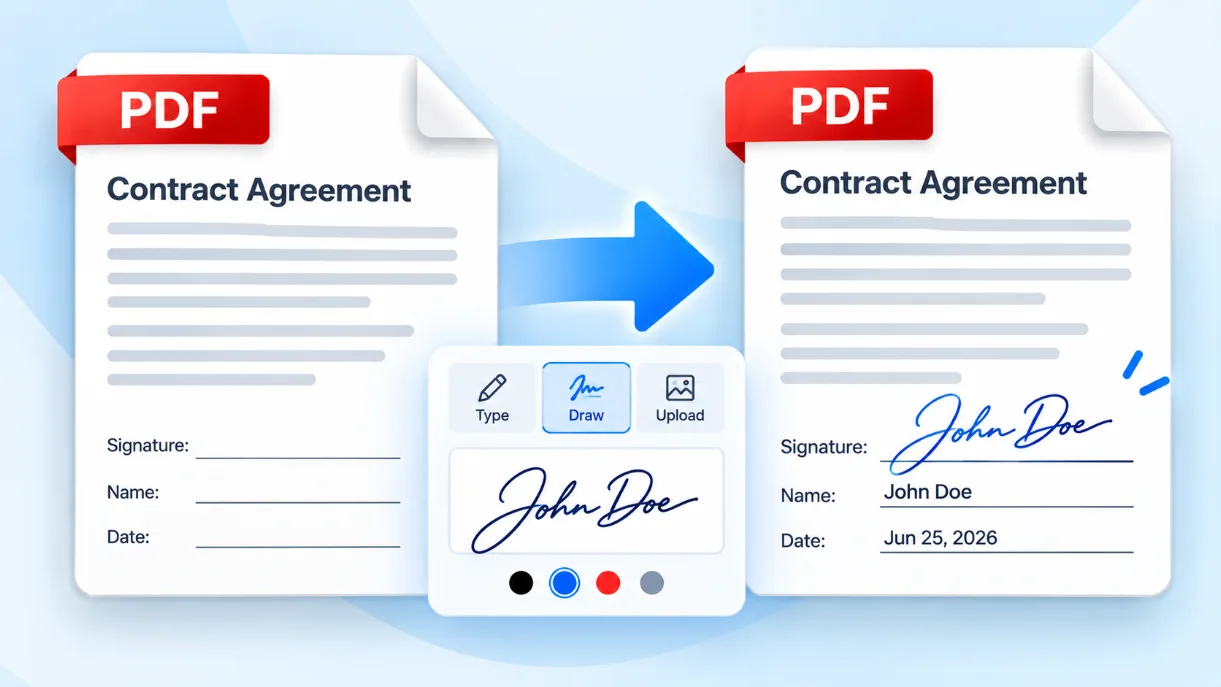
Sign a PDF Online with Your Signature, Date, Text, and Stamp
Solvioza Sign PDF lets you place a visible signature on any PDF page directly in your browser. Type your name in a signature style, draw with a mouse or touchscreen, or upload a PNG or JPG signature image. You can also add names, dates, custom text, and stamps, then move and resize every item before downloading the signed copy.
Use the visual PDF signer for agreements, permission forms, applications, approvals, acknowledgements, and routine business documents. It adds marks you can see on the page; it does not create a certificate-backed cryptographic digital signature.
How to Sign a PDF Online
For help choosing between typing, drawing, and uploading a signature, placing it accurately, and checking the finished document, read the complete guide to adding a signature to a PDF.
- Add your PDF: Choose one or more PDF files, each up to 100 MB. Every page appears in the document preview.
- Create a signature: Type your name, draw a handwritten signature, or upload and crop a PNG or JPG image.
- Place it: Select Add signature, or drag the current signature onto the exact document and page where it belongs.
- Add supporting fields: Insert a name, date, custom text, text stamp, or stamp photo when the document needs more information.
- Arrange the page: Drag items to move them, use the corner handle to resize, and rotate stamps when needed.
- Review every page: Use the page thumbnails and Elements panel to find all placed items before creating the result.
- Download: Select Sign PDF for one document or Sign PDFs for several. Multiple results download together as a ZIP archive.
Three Ways to Create an Electronic Signature
Enter your name, compare 20 handwritten-style fonts, and choose from a 14-color signature palette.
Draw on the signature pad with a pointer or touch input. Erase, undo, redo, or clear until the result looks right.
Choose a PNG or JPG, crop the useful area, and place it on the PDF. A transparent PNG usually gives the cleanest result.
The signature remains editable during the current session. Select a placed signature to revise its style or image, move it, resize it, or remove it without changing the source file.
Add More Than a Signature
Many forms need a printed name, signing date, initials, job title, or approval mark beside the signature. Add those details as separate visual fields and position each one independently.
| Element | Useful for | Available controls |
|---|---|---|
| Signature | Visible consent or acknowledgement | Type, draw, upload, edit, move, resize |
| Name or text | Printed name, title, initials, notes | Text, font, color, alignment, position, size |
| Date | Recording the signing or approval date | Four date formats, font, color, size |
| Stamp | Approved, reviewed, received, or custom status | Text or photo, shape, border, color, rotation |
Custom text can span up to eight lines, use one of five readable field fonts, and align left, center, or right. For broader annotations such as drawings, shapes, notes, and images outside a signing workflow, use the online PDF Editor.
Reuse a Signature Block Across Pages
A signature block often contains several items: a signature, printed name, date, and title. Select two or more placed elements and save them as a group. You can then click or drag that group onto another page while keeping the same spacing and relative sizes.
Groups are useful for initialing several pages, repeating an approval block, or applying the same signer details to multiple documents. Review each placement because page sizes and available blank areas can differ.
Sign Multiple PDF Files in One Session
Add several PDFs, switch between their page previews, and place the required signatures or fields in each document. When you finish, the browser creates one signed PDF per source file and packages the results in a ZIP download.
- Separate output filesEach input remains its own PDF instead of being merged with the other documents.
- Document-aware placementEvery signature and field stays assigned to its selected file and page.
- Reusable groupsPlace the same prepared block in more than one document without rebuilding its layout.
- One ZIP downloadCollect all completed PDFs together when the session contains multiple source files.
If the pages must become one document before signing, combine them first with PDF Merger. To reorder, rotate, remove, or extract pages, prepare the final sequence with PDF Organizer before placing page-specific fields.
Private PDF Signing in Your Browser
Your PDFs, signature drawing, uploaded signature image, page previews, and finished files are processed locally in the browser. Solvioza does not upload them to a server for signing or conversion.
Local processing reduces exposure to remote file storage, but device security still matters. Avoid shared computers for confidential documents and inspect the download before sending it. To require a password when opening the completed file, apply signing first and then use Protect PDF.
Visible Electronic Signature vs. Digital Signature
A visible electronic signature is an image or styled mark placed on the PDF page. A cryptographic digital signature uses a signing certificate and lets compatible software check signer identity and whether the file changed after signing. This tool creates the visible kind.
| Capability | Visible signature made here | Certificate-based digital signature |
|---|---|---|
| Shows a signature on the page | Yes | Usually |
| Requires a certificate | No | Yes |
| Cryptographically verifies identity | No | Depends on certificate validation |
| Detects later file changes | No | Yes, in supporting readers |
PDF Compatibility and Important Limits
- File size: Each selected PDF can be up to 100 MB. Page count, image size, document complexity, browser memory, and device speed may create lower practical limits.
- Signature and stamp images: Upload PNG or JPG files. Transparent PNG images usually blend most naturally with the page; an uploaded photo stamp can be up to 10 MB.
- Encrypted PDFs: The browser must be able to open the source without a password. If authorized, use Unlock PDF before signing.
- Existing digital signatures: Adding visible elements and saving a new PDF changes the document bytes, so an existing cryptographic signature will no longer validate. Keep the original digitally signed file.
- Document features: Review forms, links, bookmarks, attachments, scripts, accessibility tags, portfolios, and other advanced features after any PDF rewrite.
- Output size: Embedded signature and stamp images can increase file size. If necessary, verify the signed copy and then use PDF Compressor.
Checklist Before You Send the Signed PDF
- Use the final page order: Complete merging, splitting, rotation, and page removal before placing signatures.
- Check every required field: Confirm the signature, printed name, date, title, initials, and stamps are complete.
- Inspect placement: Make sure no item covers important text and that every mark appears on the intended page.
- Keep the source: The tool downloads a new copy; retain the original PDF in case corrections are required.
- Open the result: Review the downloaded PDF in your usual reader, especially pages containing resized or rotated items.
- Confirm acceptance: Ask the recipient whether a visible electronic signature meets their process before relying on it for a formal submission.