Edit a PDF Online with Text, Images, Drawing, and Shapes
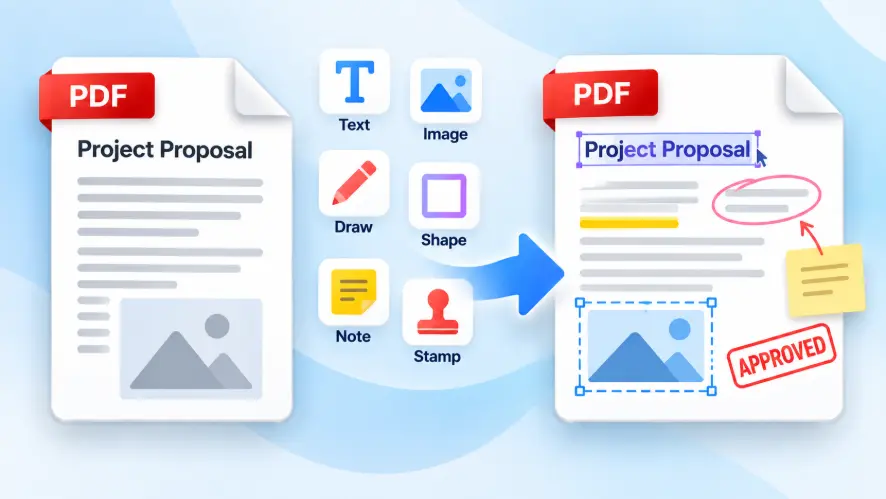
Solvioza PDF Editor lets you add text, images, notes, freehand marks, shapes, lines, and emojis to PDF pages directly in your browser. Open a document, move through its page thumbnails, place visual elements where they belong, adjust their appearance, and download a new edited PDF without installing desktop software.
Use it to add answers to a simple PDF form, label a diagram, place an image or logo, mark corrections, highlight an area, or write a quick note. The editor adds content over the page; it does not replace existing PDF text.
How to Edit a PDF Online
The steps below cover the basic workflow. For a closer look at choosing tools, positioning elements, reviewing pages, and checking the downloaded file, read the complete guide to editing a PDF online.
- Choose a PDF: Drag one document into the upload area or select Choose PDF File. The file can be up to 100 MB.
- Find the page: Use the page thumbnails or previous and next controls to move through the document.
- Add content: Select Text, Image, Draw, or open Shapes to add a rectangle, ellipse, line, note, or emoji.
- Position the element: Select an item and drag it to the correct place. Use the handles around it to resize it.
- Adjust its style: Choose a color, opacity, stroke width, or font size when that setting applies.
- Review your work: Zoom in, fit the page or width, and inspect the Elements panel to find additions across pages.
- Create the file: Enter a clear output filename, select Apply edits, and wait while the browser writes the additions into a new PDF.
- Download and check: Save the edited PDF and open it in your normal reader before sharing it.
PDF Editing Tools Available
Type a label, answer, caption, date, or short paragraph. Set the font size, text color, opacity, position, and text-box dimensions.
Place a PNG or JPG on a page, preserve its proportions while resizing, and control its position and opacity.
Use freehand drawing for quick marks, arrows, underlines, or handwritten-style annotations, with adjustable color and stroke width.
Place rectangles, ellipses, straight lines, colored notes, or emojis to call attention to important content.
Every addition remains selectable during the session, so you can move, resize, restyle, delete, undo, or redo it. The Elements panel groups additions by page for easier navigation in longer documents.
What This PDF Editor Changes
This overlay-based PDF annotation editor writes new text and graphics onto existing pages. It is designed for additions and visual markup, not for rewriting the source document like a word processor.
| Task | Supported? | How it works |
|---|---|---|
| Add new text | Yes | Places a new text layer over the page |
| Insert PNG or JPG | Yes | Embeds the selected image at your chosen size and position |
| Draw and annotate | Yes | Adds freehand strokes, shapes, lines, notes, and emojis |
| Replace existing PDF text | No | Original page text is not detected or rewritten |
| OCR a scanned page | No | Scanned text remains part of the original page image |
Precise Placement and Visual Review
The canvas shows the selected page and its edits. Zoom in for detail, use Fit page or Fit width, and navigate multi-page PDFs with thumbnails that mark pages containing additions.
Select an element to move it or use its handles to resize it. Images retain their proportions, text wraps within resized boxes, and opacity can keep the page below visible.
Zoom in before placing small text or thin lines, then review the downloaded PDF at normal size because it is the final version readers will see.
Common Ways to Edit and Annotate PDFs
- Forms and applicationsAdd short answers, dates, reference numbers, and explanatory notes where interactive form fields are unavailable.
- Review and feedbackCircle a problem, underline a sentence, draw an arrow, or place a note beside a requested revision.
- Branding and identificationInsert a logo or image and add a department, project, client, or version label to a document.
- Teaching and studyAnnotate worksheets, label diagrams, mark worked examples, and add notes to reference material.
If the same notice or logo must appear consistently across many pages, PDF Watermark provides page ranges, repeated tiling, rotation, and reusable placement controls. The editor is better suited to page-specific additions placed individually.
Private, Browser-Based PDF Editing
PDF reading, previews, edits, image embedding, and output creation happen locally in your browser. The PDF and inserted images are not uploaded to Solvioza or a third-party conversion service; your device creates the temporary download.
Local processing avoids upload time, but device security still matters. For sensitive records, avoid shared computers, keep the source copy, and verify the result. If the finished file needs an open password, use Protect PDF after completing and checking all edits.
PDF Compatibility, Limits, and Important Details
The editor accepts one PDF up to 100 MB and inserts PNG or JPG images. Performance depends on document complexity, inserted images, browser memory, and device speed.
- Password-protected PDFs: The editor cannot open an encrypted document. If you are authorized and know the password, use Unlock PDF first.
- Existing content: Added elements sit over the original page; underlying words, images, and vectors are not removed.
- Fonts: Added text uses a standard PDF font rather than matching every typeface already present in the document.
- Digital signatures: Applying edits changes the file bytes and invalidates an existing cryptographic signature. Keep the original signed PDF.
- Advanced features: After any PDF rewrite, check forms, links, attachments, bookmarks, accessibility structure, scripts, and other document-level features that matter.
- File size: The output size may differ, especially after inserting images. If necessary, reduce it afterward with PDF Compressor.
Tips for a Clean Edited PDF
- Make structural changes first: Reorder or remove pages before placing page-specific annotations.
- Use contrast carefully: Choose colors that remain readable against the original page and lower opacity only when content below must show through.
- Keep text concise: Short labels and notes are easier to position and review than dense replacement paragraphs.
- Use undo while editing: Undo and redo are available during the current session, before the source is replaced or the page is closed.
- Name the output clearly: Keep the edited copy distinct from the original document.
- Inspect every edited page: Open the downloaded PDF and check placement, wrapping, image clarity, and page orientation.