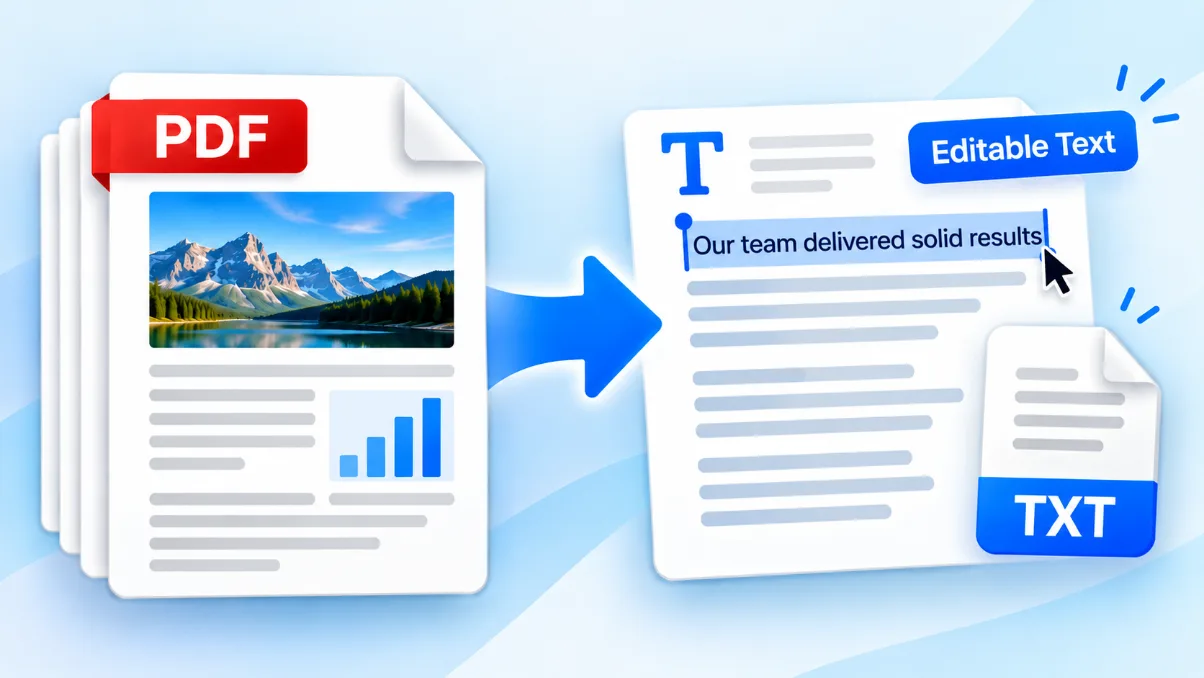
Copying a few sentences from a PDF is simple when the document contains selectable text. Extracting an entire report, manual, or multi-page document by hand is a different matter. A PDF-to-text tool can collect the text from every page and place it in one editable result.
The PDF to Text Converter extracts embedded text from a PDF directly in your browser. You can review and edit the result, copy it to your clipboard, or download it as a plain TXT file. It also adds page separators so you can see where each original PDF page began.
There is one important limitation: this process works with selectable text. A scanned PDF usually contains page images rather than embedded characters and therefore requires optical character recognition, or OCR.
Check whether the PDF contains selectable text
Before extracting anything, open the PDF and try to select a sentence with your cursor. On a phone, press and hold over a word to see whether text-selection handles appear.
| What happens | Likely PDF type | Expected extraction result |
|---|---|---|
| You can select individual words and sentences | Digitally created PDF with embedded text | Text should be extractable |
| The complete page is selected like one picture | Scanned or image-only PDF | OCR is required |
| Some areas are selectable but others are not | Mixed document containing text and scanned images | Only the embedded text will be extracted |
| Text is selectable but copied in an unusual order | PDF with columns, tables, or complex positioning | Text can be extracted but may need editing |
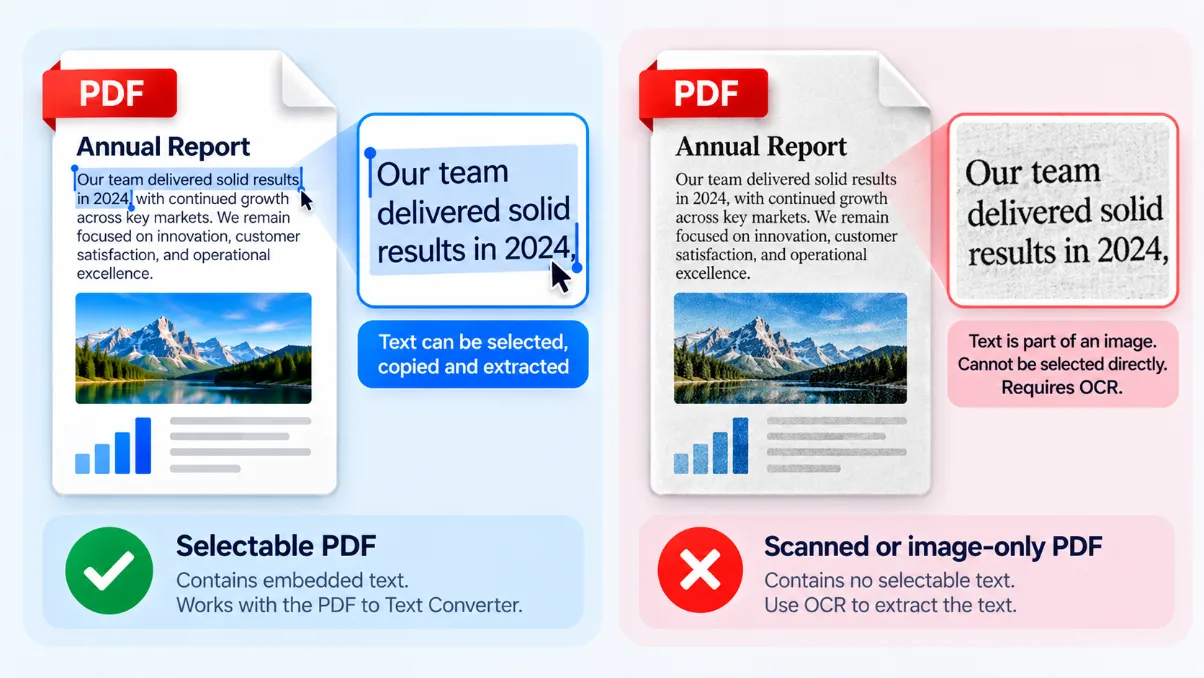
Being able to search for a word inside the PDF is another useful indication that it has a text layer. However, it is still worth checking the result because embedded fonts and complex layouts can affect extraction.
How to extract text from a PDF
- Open the converter. Go to the PDF to Text Converter.
- Select the PDF. Drag the document into the upload area or browse your device. The tool accepts one PDF up to 100 MB.
- Confirm that the document is suitable. If the PDF consists only of scanned page images, the tool will report that no selectable text was found.
- Start extraction. Select Extract Text. Progress appears as each page is processed locally in your browser.
- Review the preview. The result shows the processed page and character counts. Markers such as
--- Page 1 ---separate text from different pages. - Edit the result if needed. Remove repeated headers, correct spacing, or reorganize passages in the editable preview.
- Copy or download the text. Use Copy text or select Download .txt to save a plain-text file.
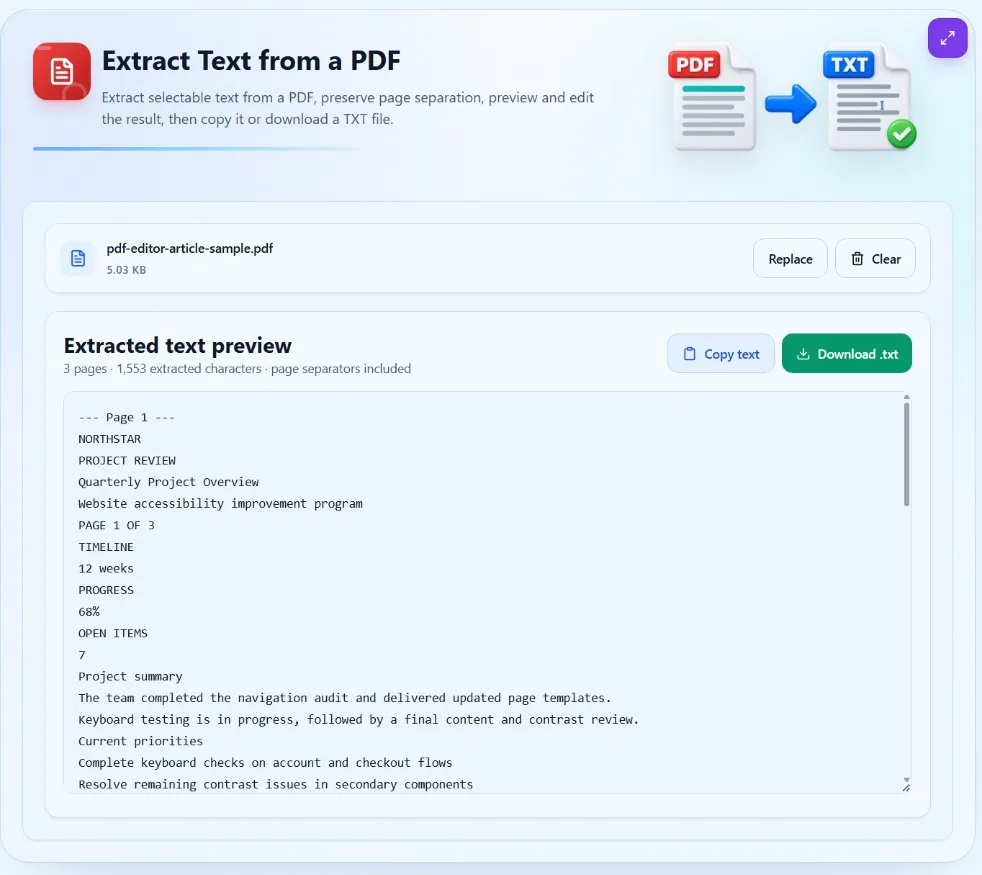
After extraction, review the editable preview and use the page separators to trace each section back to the original PDF. You can then copy the revised text or download it as a TXT file.
What the extracted text will look like
Text extraction retrieves characters and tries to reconstruct their reading order. It does not recreate the PDF’s visual design. Font choices, colors, images, page backgrounds, precise spacing, and most layout information are not included in a TXT file.
The result is best treated as editable source text rather than a visually identical version of the PDF.
| PDF element | What to expect in the text result |
|---|---|
| Paragraphs | Usually extracted as readable text, although line breaks may differ |
| Page boundaries | Preserved with clearly labelled page separators |
| Headers and footers | May appear repeatedly because they exist on every page |
| Two-column layouts | Reading order may alternate or combine columns incorrectly |
| Tables | Cell text may be extracted without the original rows and columns |
| Images and scanned text | Not converted into words without OCR |
| Links, fonts, colors, and styling | Generally not preserved in a plain-text file |
Why extracted PDF text sometimes appears out of order
A PDF is designed primarily to describe where content should appear on a page. It does not always store words in the same sequence that a person reads them.
A page with a sidebar, two columns, a floating caption, and a footer might contain several separate text blocks. The extraction process reads those blocks, but their internal order may not perfectly match the visible layout.
This is especially noticeable in newspapers, multi-column reports, financial statements, complex tables, forms, slides, and documents with repeating headers or footers.
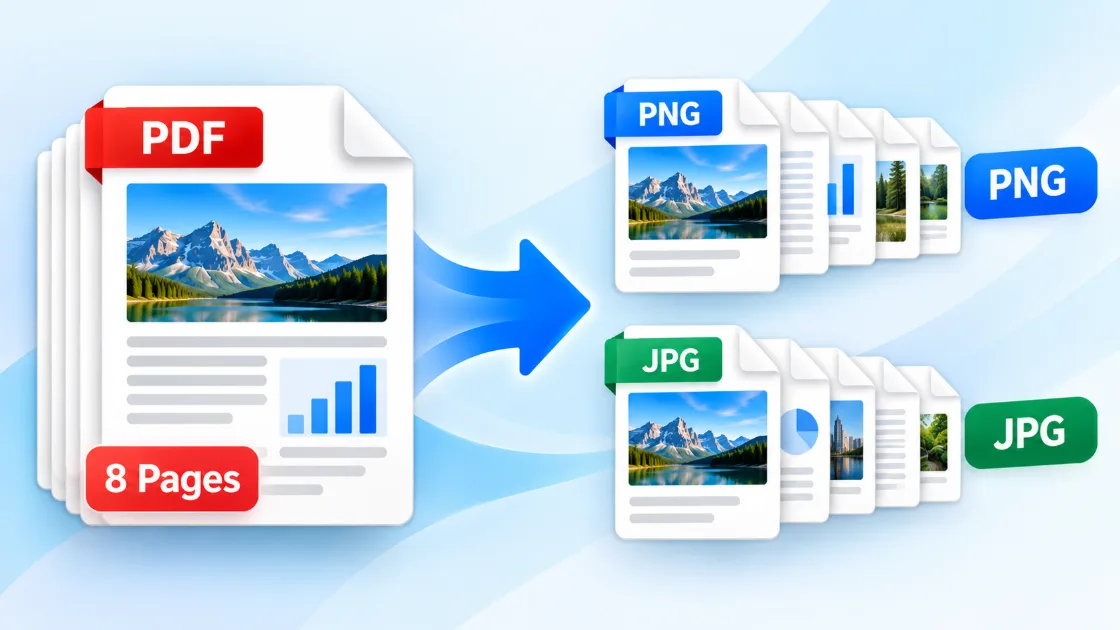
Use the editable preview to reorganize passages before copying or downloading them. If retaining the page design matters, text extraction is probably not the right conversion. You may instead want to convert the PDF pages to images.
What to do when no text is found
If the converter reports that no selectable text was found, the PDF is probably a scan or an image-only document. This commonly happens with scanned contracts, receipts, old books, and photographs of printed pages.
These documents require OCR. OCR examines the shapes in an image and attempts to identify them as letters, numbers, and punctuation. It is a separate process from reading text already embedded in a PDF.
OCR accuracy depends on the source material. Small letters, unusual fonts, handwriting, shadows, low contrast, skewed pages, and multiple languages can affect the result. Always compare important OCR output with the original.
Converting a scanned PDF with the PDF to Images Converter does not itself recognize the text. It can create page images for use with an OCR application, but those images still contain pixels rather than editable words.
Cleaning up extracted text
Even a well-structured PDF may produce text that needs minor editing. Review the result before using it in another document or publishing it.
- Remove page markers if they are not needed. They help trace content back to the source but may be unnecessary in a continuous document.
- Delete repeated headers and footers. A title, date, or page number may appear once for every original page.
- Repair paragraph breaks. Lines that were visually wrapped may not form complete paragraphs automatically.
- Check hyphenated words. A word split at the end of a printed line may remain separated.
- Rebuild tables deliberately. Plain text cannot reliably preserve a complex grid, so verify each value.
- Check unusual characters. Symbols, mathematical notation, and custom fonts may not extract as expected.
Copying text versus downloading a TXT file
Both options use the current text shown in the preview, including any edits you make there.
- Copy text is convenient when you want to paste a passage into an email, note, document, or editor immediately.
- Download .txt is better when you want to keep the complete result, transfer it, or process it later.
A TXT file can be opened by standard text editors. It will not retain the original PDF’s fonts, images, page dimensions, or visual layout.
Extract text from only part of a PDF
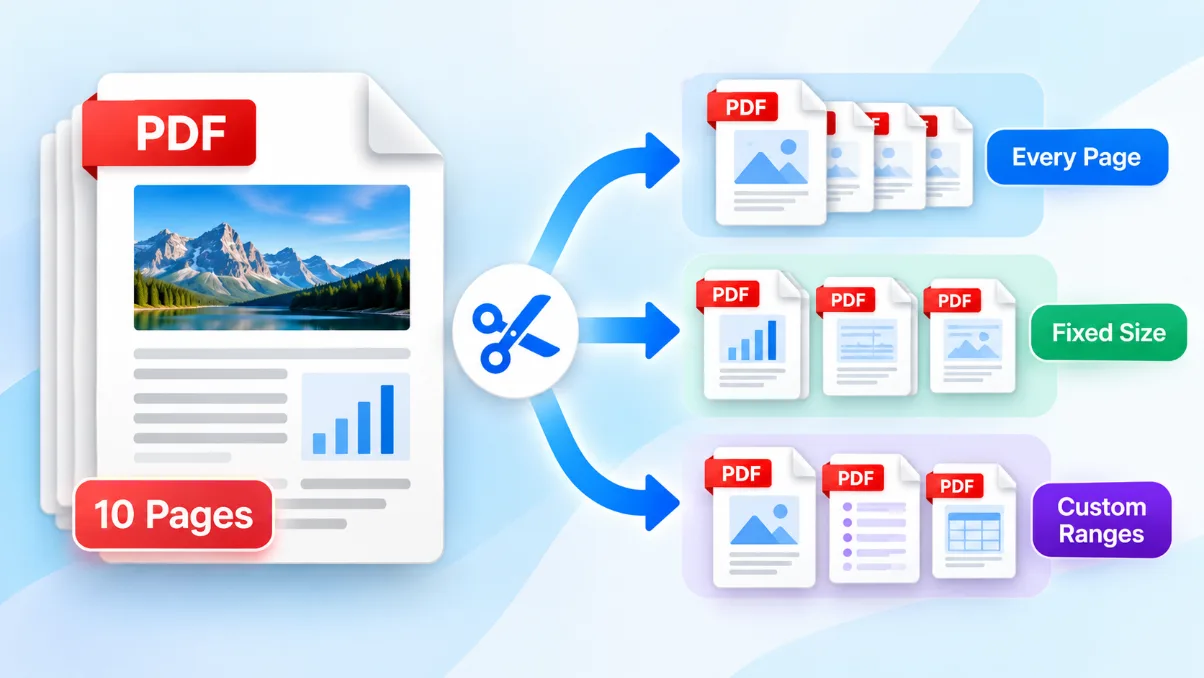
The converter processes every page in the selected document. If you need text from only a chapter or page range, first create a smaller PDF with the Split PDF tool.
Choose custom ranges, enter the pages you need, and download the resulting PDF. You can then process that document with the text converter. The article on how to split a PDF into separate pages or files explains the available options.
Privacy and sensitive documents
The PDF to Text Converter reads the document locally after the required processing library loads. The PDF is not uploaded to the Solvioza backend or sent to a third-party conversion service.
Local processing reduces unnecessary document transfer, but you should still handle the output carefully. Extracted text may contain confidential information. Avoid leaving sensitive TXT files on shared devices, and review the text before pasting it elsewhere.
Review the result before using it
Text extraction saves time, but its output should not automatically be treated as a perfect transcription. Compare important names, dates, amounts, legal clauses, and technical values with the original PDF.
For ordinary digitally created documents, the process is straightforward: open the PDF to Text Converter, extract the embedded text, clean up the preview, and copy or download the result. If the document is a scan, use OCR instead of expecting a standard PDF text extractor to recognize the page image.