A PDF often reaches you in a finished form, but that does not always mean it is ready to use.
You may need to type an answer onto a page, add a date, place a company logo, circle an important detail, or leave a note for someone reviewing the document. Converting the entire file to another format can shift the layout, replace fonts, or create more work than the small change requires.
An online PDF editor provides a simpler option. You can open the document in your browser, place new content over the existing pages, and download an edited copy while leaving the original file unchanged.
This guide explains how to edit a PDF online with the Solvioza PDF Editor, which editing tools to choose, and what to check before sharing the finished document.
What Can You Edit in a PDF Online?
The word edit can mean two different things with PDFs. Some software changes the original text and images stored inside the document. Other editors add a new layer of content over the page.
Solvioza uses the second approach. It lets you add and arrange text, images, drawings, notes, shapes, lines, and emojis. It does not select, delete, or rewrite text that is already embedded in the original PDF.
| Task | Available in the PDF Editor? | What to do |
|---|---|---|
| Add a name, date, answer, or label | Yes | Place a new text box over the page |
| Insert a logo, stamp, or photograph | Yes | Add a PNG or JPG and resize it |
| Mark or call attention to an area | Yes | Use drawing, a line, a rectangle, an ellipse, or a note |
| Move or restyle something you added | Yes | Select the element, then adjust its position and appearance |
| Replace a sentence already printed in the PDF | No | Edit the source document or use software that supports original-content editing |
| Delete an existing photograph from the page | No | Return to the source document when possible |
This distinction matters when choosing a tool. Adding an answer to a blank line is a good fit. Correcting a spelling mistake inside an existing paragraph is not.
How to Edit a PDF Online Step by Step
1. Open the PDF editor and choose your file
Open the online PDF Editor, then drag your document into the upload area or choose it from your device. The editor accepts one PDF of up to 100 MB.
The file is processed in your browser rather than sent to a server. Even so, keep your normal security practices in mind: work on a trusted device, avoid leaving confidential files in a shared downloads folder, and close the document when you finish.
2. Find the page you want to change
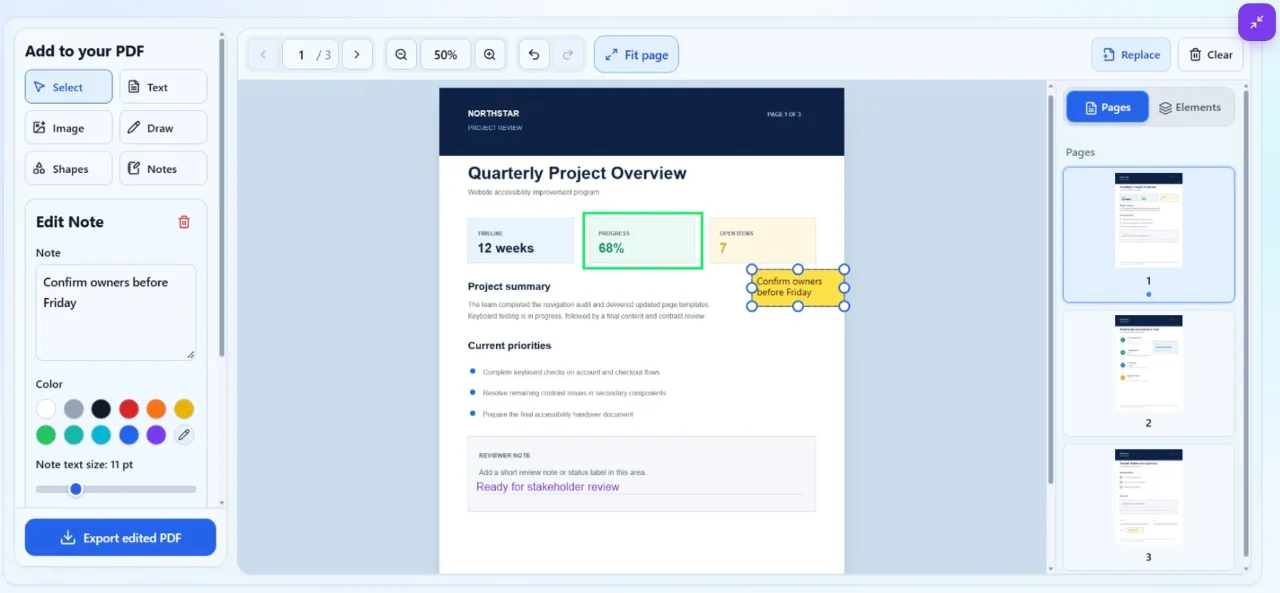
After the PDF opens, use the page thumbnails to move through the document. You can also use the previous and next buttons or enter a page number directly.
Zoom in when you need to position a small label or mark. Fit-to-page is useful for seeing the full layout, while fit-to-width makes text and form fields easier to inspect.
3. Choose the right editing tool
Select a tool according to the change you need:
- Text: add names, dates, answers, captions, labels, or short paragraphs.
- Image: place a PNG or JPG such as a logo, photograph, or prepared stamp.
- Draw: make freehand marks, underlines, circles, or handwritten-style annotations.
- Rectangle, ellipse, and line: frame an area, connect items, or draw attention to a specific detail.
- Note: add a visible comment box with a short explanation.
- Emoji: place a simple visual marker where an informal annotation is appropriate.
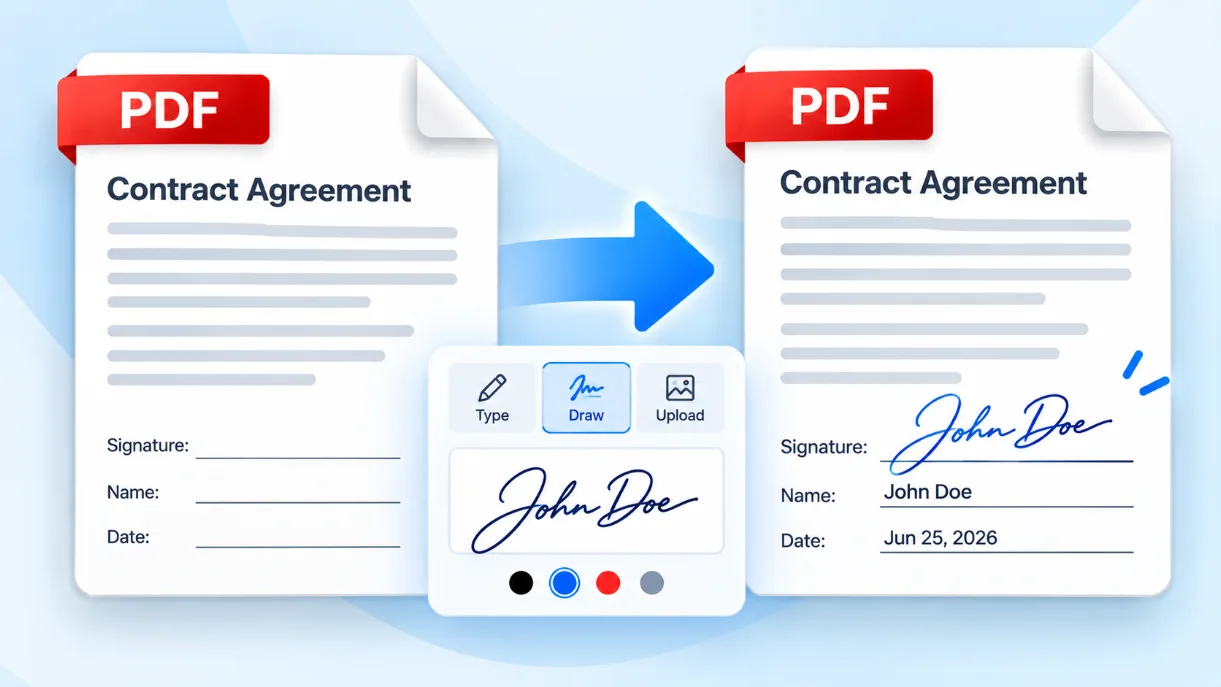
For an official signature, use the dedicated Sign PDF tool instead of drawing one freehand. It provides purpose-built signature, date, text, and stamp controls.
4. Place and resize the new element
Click or drag on the page to create the element. Switch to Select, choose what you added, and drag it into position. The handles around a selected item let you resize it.
Keep text inside open space wherever possible. Covering existing content with an opaque shape may make it look hidden, but it does not securely remove the underlying information from the PDF.
5. Adjust the appearance
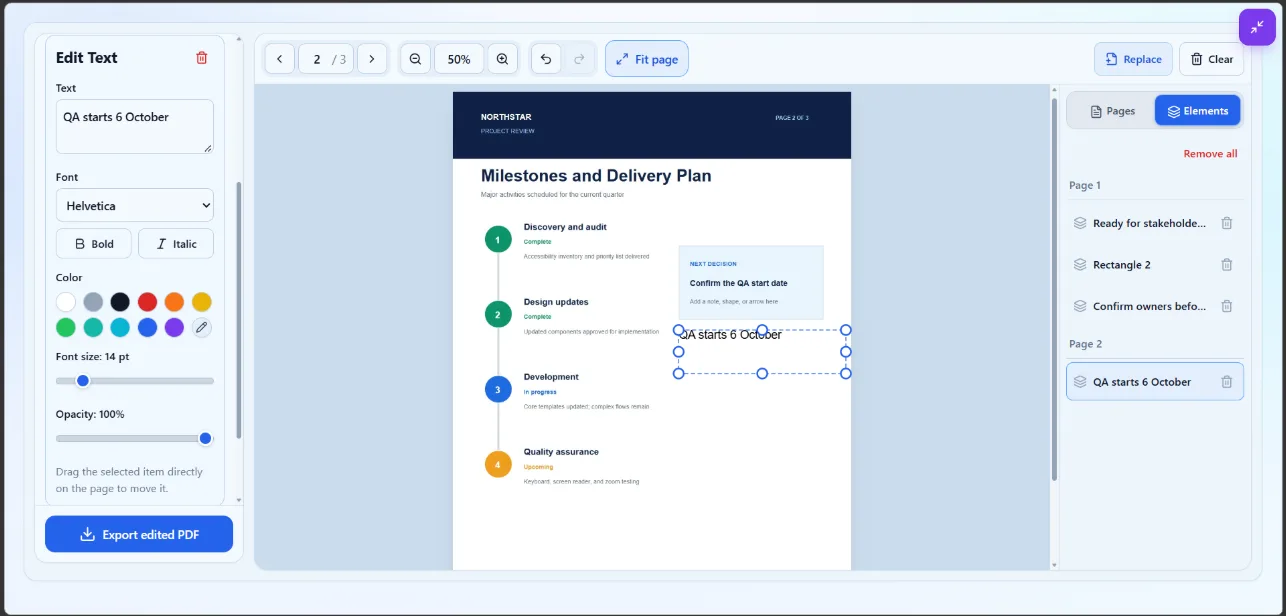
Use the available controls to make the addition fit the document. Text can use Helvetica, Times, or Courier, with adjustable size, color, opacity, bold, and italic styling. Drawings and shapes support color, line width, and opacity. Images can be resized, repositioned, and made partially transparent.
A good edit should be easy to read without looking out of place. Match the surrounding text as closely as the available fonts allow, use strong contrast, and avoid making annotations smaller than the document's normal body text.
6. Review edits across every page
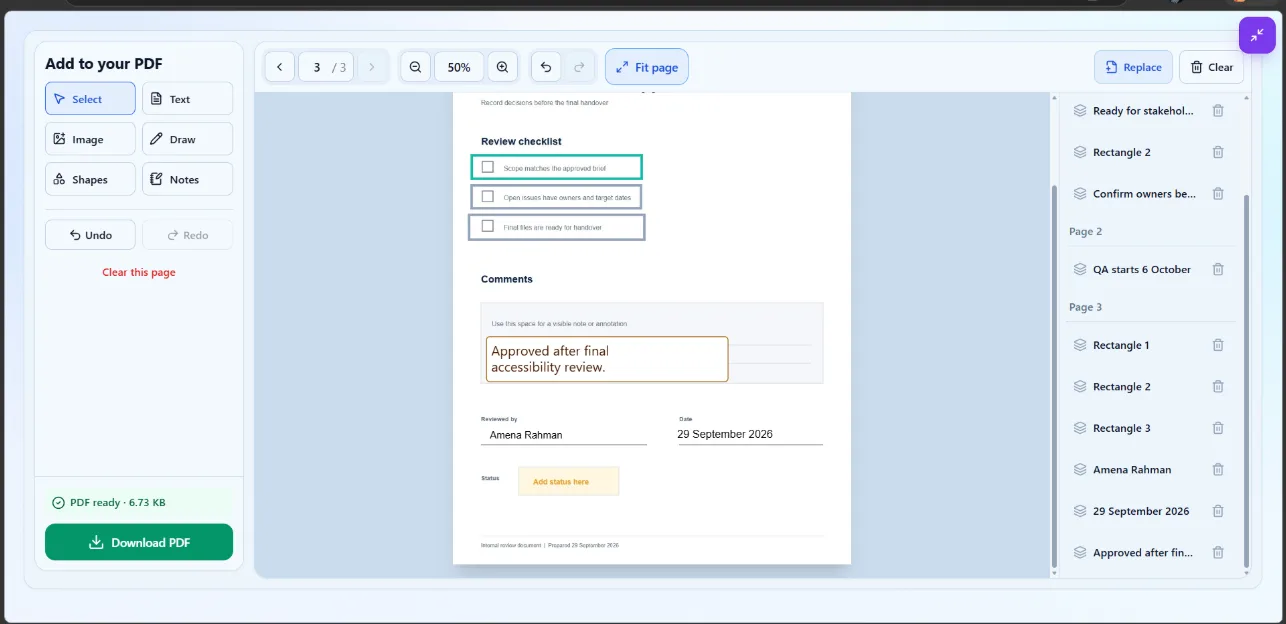
The Elements panel lists additions by page, which is useful when a document contains several changes. Select an item to revise it or remove it. Undo and redo are available if a move, resize, or style change does not look right.
Before exporting, check every page that has an edit. Look for text boxes that overlap page content, images with the wrong proportions, marks placed on the wrong page, and notes that are too transparent to read.
7. Export and download the edited PDF
Give the output a clear filename, apply the edits, and download the completed PDF. Save it as a new file instead of replacing the original. A name such as project-proposal-reviewed.pdf or application-completed.pdf makes the new version easier to identify.
Open the downloaded file in your usual PDF reader and inspect it at normal zoom. Confirm that all additions appear on the intended pages and that nothing is clipped near a page edge.
Which PDF Editing Tool Should You Use?
Not every change belongs in a general PDF editor. A more focused tool may be faster and less error-prone.
| If you need to... | Use this tool | Why |
|---|---|---|
| Add text, images, notes, drawings, or shapes | PDF Editor | It places visual content directly on PDF pages |
| Add a signature, date, or signature stamp | Sign PDF | It is designed specifically for signing workflows |
| Reorder, rotate, duplicate, or remove pages | PDF Organizer | It changes the document's page structure |
| Separate selected pages into new files | Split PDF | It creates individual PDFs from pages or ranges |
| Combine several documents | PDF Merger | It joins complete PDFs in your chosen order |
| Make the completed document smaller | PDF Compressor | It reduces file size after editing |
Practical Ways to Edit a PDF Without Damaging the Layout
Use short text additions
PDF pages are fixed layouts, so a new paragraph does not push the existing content downward as it would in a word processor. Keep added text concise and place it in a space that can contain the full text box.
Choose readable colors and opacity
Dark text on a light page is usually safest. Lower opacity can work for a highlight-style shape, but it often makes text and thin lines difficult to read. Review transparent elements against the actual page rather than the blank editor controls.
Do not use visual covering for redaction
Placing a rectangle over private text is not the same as removing that information. The underlying PDF content may remain searchable or extractable. Use a proper redaction workflow when sensitive information must be permanently removed.
Keep an untouched original
An edited PDF is a new version of the document. Retaining the original makes it possible to correct a mistake, compare versions, or restart without accumulated overlays.
Check interactive and signed documents
After editing, test any links, form fields, comments, or other interactive features that matter. Rewriting a digitally signed PDF can invalidate its existing signature, so verify signature status before relying on the edited copy.
What to Do After Editing
The next step depends on how the document will be used. If the new file is too large for an email or upload form, compress the PDF without unnecessary quality loss. If the edited document belongs with attachments or supporting records, follow the guide to merge PDF files into one PDF.
For a document that contains pages different people need separately, you can also split the PDF into individual pages or custom page ranges.
Edit the PDF and Check the Finished Copy
Online PDF editing works best for focused changes: adding an answer, inserting an image, marking an area, or leaving a visible note. Choose the appropriate element, position it carefully, and review the exported file rather than assuming the preview and download will always look identical.
When you only need to add content over existing pages, the Solvioza PDF Editor provides a straightforward way to make those changes in your browser and save a fresh copy.