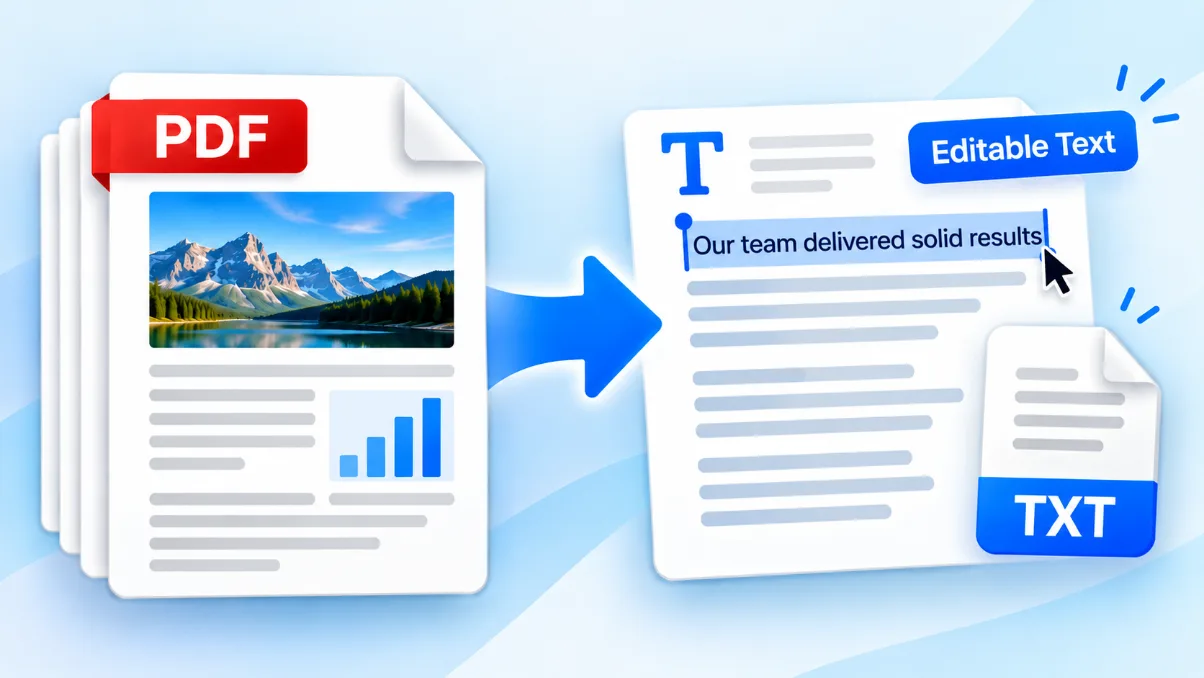
A long PDF is not always useful as one file.
You may need to send one certificate from a scanned bundle, separate a statement into individual pages, extract two chapters from a manual, or divide a large report into smaller sections. Recreating those pages manually is slow and can introduce formatting or quality problems.
A PDF splitter copies the pages you choose into new PDF files. The source document remains unchanged, and you can decide whether every page, equal-sized groups, or specific page ranges should become separate files.
This tutorial explains how to use the Solvioza Split PDF tool, choose the right splitting method, enter custom page ranges correctly, and check the results before sharing them.
Choose What the Split Files Should Contain
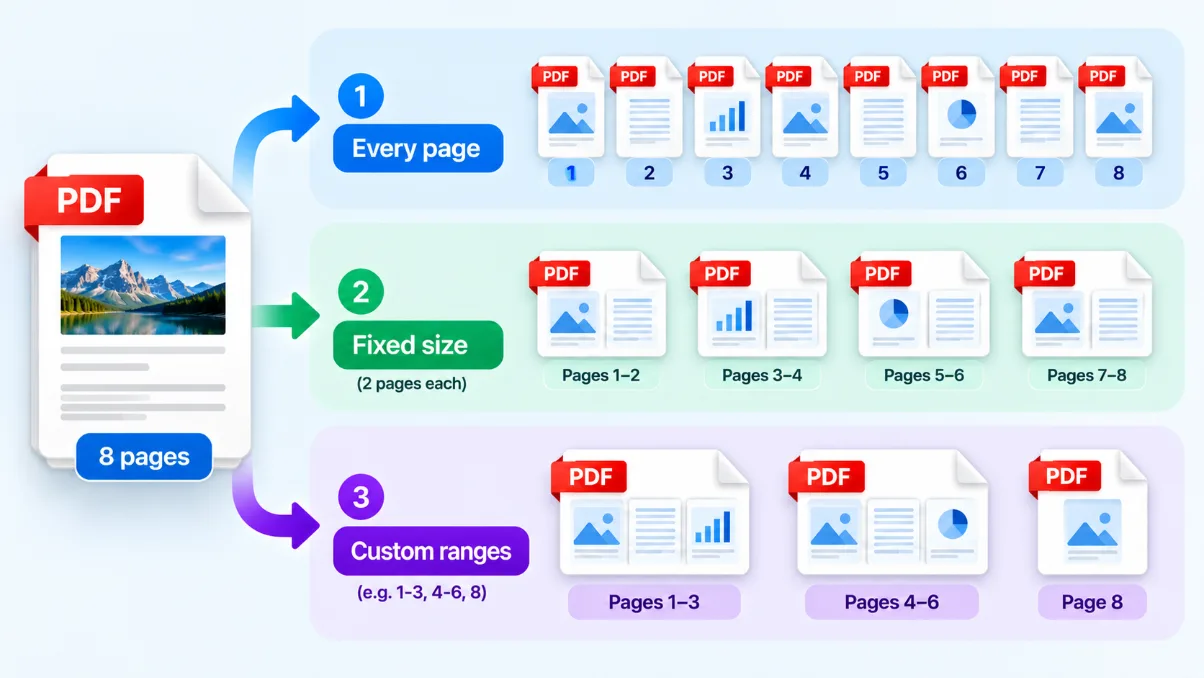
Before uploading the document, decide how you want the pages divided. Solvioza provides three split modes, and each solves a different problem.
| Split mode | What it creates | Best used for |
|---|---|---|
| Every page | One single-page PDF for every page in the source | Invoices, certificates, worksheets, forms, tickets, or scanned records that must be distributed separately |
| Fixed size | Consecutive PDFs containing the same maximum number of pages | Dividing a long report, book, or manual into manageable parts |
| Custom ranges | One PDF for each page number or range you enter | Extracting chapters, selected sections, or groups with different lengths |
The best mode depends on the intended output—not simply the number of pages in the source PDF. If you only need pages 10 through 14, custom ranges are more efficient than separating every page and deleting the unwanted results afterward.
Prepare the Source PDF
Open the original document and identify the pages or sections you need. Use the page numbers shown by your PDF reader, not numbers printed inside the document, unless they match.
For example, a report may display “Page 1” on its third PDF page because the cover and contents pages are unnumbered. In that case, entering page 1 into a splitter extracts the first page in the file—the cover—not the page whose printed footer says “1.”
Before splitting, check that:
- the PDF opens normally;
- its pages are already in the intended order;
- the page count matches the document you expect;
- portrait and landscape pages have the correct orientation;
- you know which pages or ranges should become separate files; and
- the document is not encrypted or password-protected.
If pages need to be reordered, rotated, or removed before extraction, edit them first with the PDF Organizer. If you are authorized to modify a protected document, create an accessible copy with the Unlock PDF tool before splitting it.
How to Split a PDF Into Separate Pages or Files
1. Open the Split PDF tool
Open Split PDF in your browser. The tool processes the document locally, so the source PDF is not uploaded to the Solvioza backend for splitting.
2. Choose the source PDF
Drag one PDF into the upload area or select Choose PDF File and browse your device.
The tool accepts one PDF up to 100 MB. It reads the document and displays its filename, file size, and page count before showing the split controls.
A file ending in .pdf still needs to contain a readable PDF document. Empty, damaged, encrypted, and password-protected files are rejected.
3. Select a split mode
Choose Every page, Fixed size, or Custom ranges.
The settings change with the selected mode:
- Every page does not require additional page settings.
- Fixed size asks how many pages should be placed in each output file.
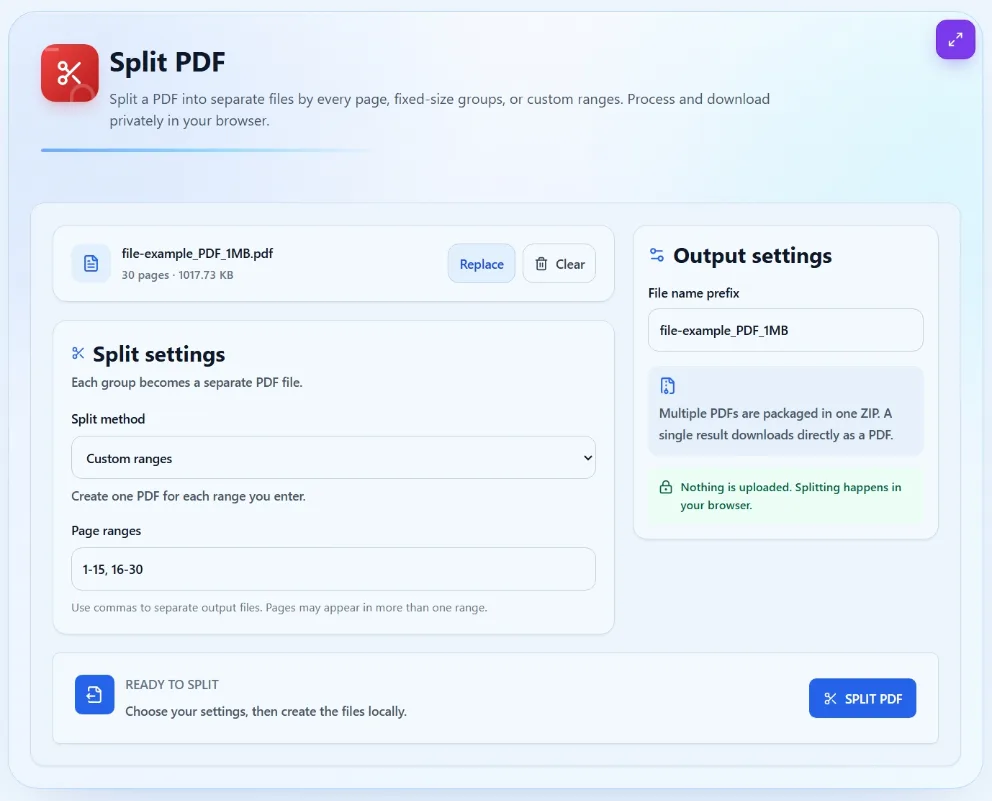
- Custom ranges asks for comma-separated pages and ranges.
4. Enter the pages or group size
For a fixed-size split, enter the maximum number of consecutive pages for each file. A 10-page PDF split into groups of 3 produces files containing pages 1–3, 4–6, 7–9, and 10.
For custom ranges, enter each desired page or range separated by a comma. For example:
1-3, 4-6, 8
This produces three PDFs: pages 1–3, pages 4–6, and page 8.
5. Choose a filename prefix
The prefix becomes the first part of every generated filename. A clear prefix such as annual-report can produce names including:
annual-report-pages-1-3.pdfannual-report-pages-4-6.pdfannual-report-page-8.pdf
The tool removes unsupported filename characters and adds the correct extension automatically. Avoid including private information in filenames if the documents will be uploaded or shared publicly.
6. Split the PDF
Select Split PDF. The tool copies the selected pages into new PDF documents and displays its progress while the files are created.
Keep the browser tab open until processing is complete. Creating many individual files can require more time and memory than producing a few larger page groups.
7. Download the result
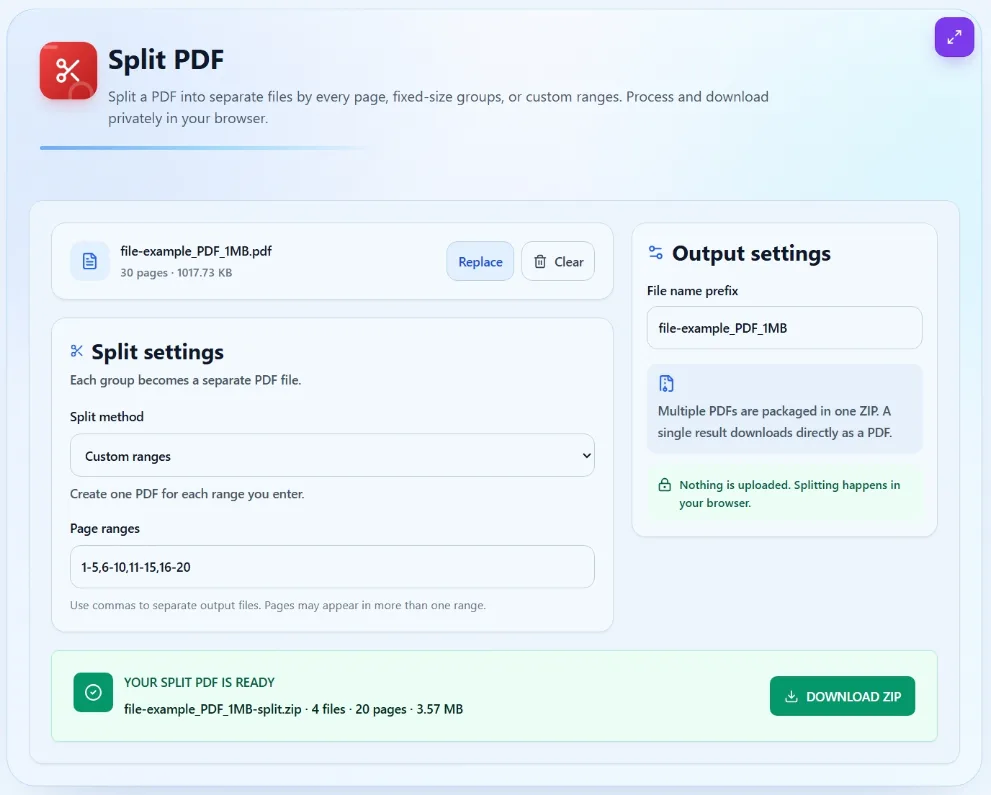
If your settings create one output file, that PDF is downloaded directly. If two or more files are created, they are placed in a ZIP archive so you can download them together.
Extract the ZIP using your computer or phone’s archive feature before opening the individual PDFs.
How Every-Page Splitting Works
The Every page mode creates one new PDF for each source page. A 12-page source produces 12 single-page PDFs.
This is useful when each page represents an independent item, such as:
- one invoice per customer;
- individual certificates;
- separate application forms;
- scanned receipts;
- worksheets for different students; or
- tickets and labels that need separate distribution.
Every-page splitting is less convenient when you only need two or three pages from a large document. In that situation, use custom ranges so the tool creates only the files you intend to keep.
Divide a PDF Into Equal-Sized Parts
Fixed size divides the document into consecutive groups using the maximum number of pages you choose.
Suppose a PDF contains 17 pages:
- Using 5 pages per file creates groups for pages 1–5, 6–10, 11–15, and 16–17.
- Using 10 pages per file creates groups for pages 1–10 and 11–17.
- Using 1 page per file has the same practical result as Every page.
The last output may contain fewer pages when the source page count does not divide evenly. No blank pages are added to make every group the same length.
This mode works well for breaking a large reference document into manageable pieces. It is less suitable when the document has chapters or sections of different lengths, because a fixed boundary may cut through the middle of a section.
Extract Pages With Custom Ranges
Custom ranges give you precise control over which pages belong in each output. Every comma-separated entry creates a different PDF file.
| Range entry | Files created | What it means |
|---|---|---|
5 |
One PDF containing page 5 | Extracts a single page. |
1-4 |
One PDF containing pages 1 through 4 | Keeps consecutive pages together. |
1-3, 4-6, 8 |
Three separate PDF files | Creates two multi-page files and one single-page file. |
1-5, 5-9 |
Two PDFs, both containing page 5 | Allows the same page to appear in more than one output. |
10-14, 1-3 |
Two files in the entered range order | The ZIP lists the requested range outputs according to the entered sequence. |
Ranges must use the lower page number first. An entry such as 14-10 is rejected. Every number must also fall within the source document’s detected page count.
A comma always starts a new output group. If you enter 2, 3, 4, the result is three single-page PDFs—not one PDF containing pages 2, 3, and 4. To keep those pages together, enter 2-4.
What Splitting Preserves—and What Needs Checking
The splitter copies selected PDF pages into new documents rather than taking screenshots of them. This helps retain the page’s original dimensions, orientation, rotation, and visible content.
| Document element | Expected behavior | Recommended check |
|---|---|---|
| Visible page content | Copied into the new PDF without deliberately rasterizing the complete page | Review text, images, diagrams, and unusual fonts. |
| Page dimensions | Original page sizes can be retained | Check mixed sizes if the results will be printed. |
| Orientation and rotation | Portrait, landscape, and rotated pages remain in their source orientation | Open each generated file and confirm that pages face the right direction. |
| Image quality | The splitter does not intentionally recompress or lower page-image quality | Inspect scanned text and detailed images in important files. |
| Bookmarks and attachments | Document-level navigation and attached files may not be preserved | Recreate or verify them when they are required. |
| Forms, scripts, and interactive features | May not behave exactly as they did in the original document | Test any fields, actions, links, or annotations the recipient needs. |
| Digital signatures | Creating a new PDF can invalidate an existing cryptographic signature | Keep the signed original and confirm the recipient’s requirements. |
Splitting does not run OCR, add watermarks, or automatically reduce file size. A page copied from a large scanned PDF may remain large because its embedded image content is still present.
Fix Invalid Page Ranges and Other Split Errors
The range contains an empty entry
An extra comma creates an empty range. Change an entry such as 1-3,,5 to 1-3,5.
A page is outside the document
If the PDF contains 20 pages, page 21 and ranges ending above 20 are invalid. Confirm the detected page count before entering the range.
The range runs backward
Enter the lower page number first. Use 7-12, not 12-7.
The PDF is protected
Encrypted and password-protected PDFs cannot be split directly. Only remove protection when you own the document or have permission to modify it.
The browser cannot finish processing
PDF splitting runs on your device, so a complex document can use more memory than its stored file size suggests. Close unused browser tabs, create fewer outputs at once, or try a device with more available memory.
The downloaded file is a ZIP
This is expected when the split creates multiple PDFs. Extract the archive to access the individual files. A single result is downloaded directly as a PDF instead.
What to Do With the Split Files
After splitting, the next step depends on why the document was divided:
- Use the individual PDFs as separate attachments or upload them to the required destinations.
- Rearrange or remove pages with the PDF Organizer.
- Reduce oversized outputs with the PDF Compressor.
- Convert PDF pages to PNG or JPG with the PDF to Images Converter.
- Combine selected parts again with the PDF Merger.
If several generated files need to become one document in a different sequence, the tutorial on how to merge PDF files into one PDF explains how document order becomes final page order.
Review Every Output Before Sharing
Do not assume that a completed download contains exactly what you intended. Open every generated file—or at least each important section—and check:
- The filename identifies the correct page or range.
- The number of generated files matches your split plan.
- Each file contains the intended first and last pages.
- No required page was accidentally omitted.
- Repeated pages appear only where you deliberately included them.
- Page orientation, dimensions, text, and images look correct.
- Any necessary links, forms, or annotations still work.
- The output does not expose pages that should remain private.
Keep the original PDF until all results have been checked and accepted. The source remains the easiest way to correct a range mistake or create a different set of files later.
Separate Only the PDF Pages You Need
A useful split begins with a clear output plan. Choose Every page when each page stands alone, Fixed size when a long document needs equal sections, or Custom ranges when specific pages need to stay together.
Open the Solvioza Split PDF tool, choose the appropriate mode, and review the generated PDFs before distributing them. The entire splitting process takes place in your browser, while the original document remains unchanged on your device.