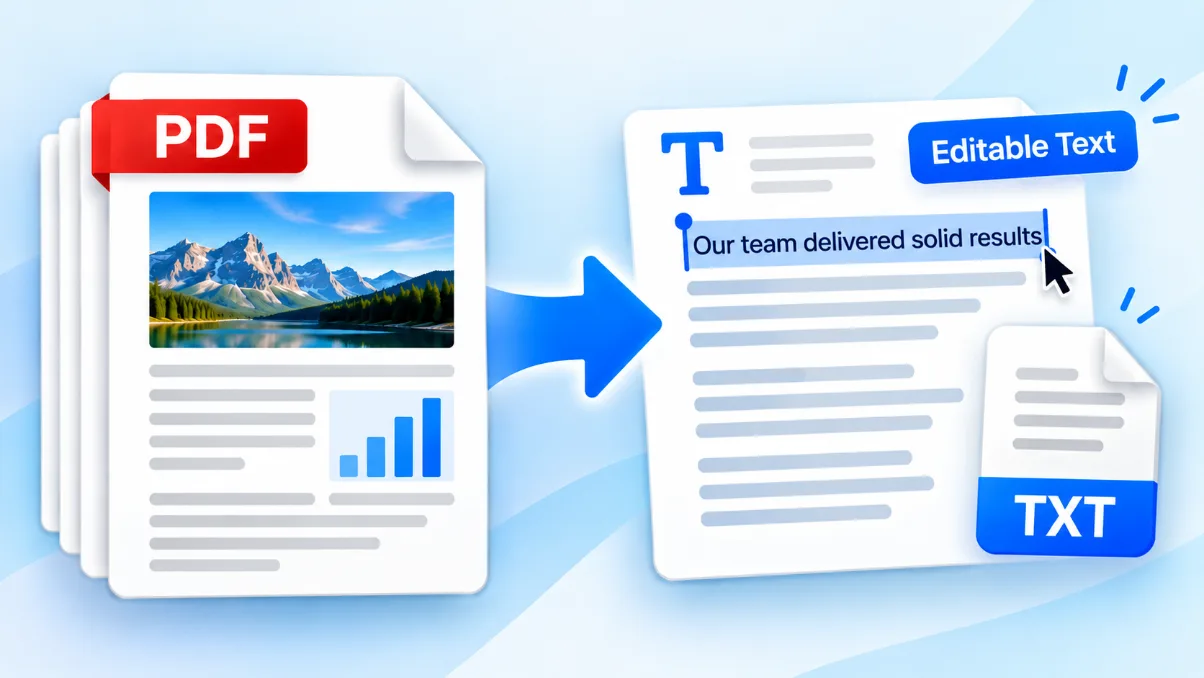
Sometimes several PDF files are really parts of the same document.
You might have a report and its appendices, an application and supporting records, or a collection of invoices that need to be submitted together. Sending every file separately makes the package harder to follow and increases the chance that something will be missed.
Merging the files creates one PDF with one filename and a predictable page order. The important part is arranging the source documents correctly before starting, because the order shown in the merger becomes the order of the finished document.
This tutorial shows you how to combine PDF files with the Solvioza PDF Merger, what the process preserves, and what to check before sharing the result.
Is Merging the Right PDF Operation?
Merging combines complete PDF documents. It does not remove individual pages, rearrange pages within a source document, or reduce the final file size.
Use the following table to choose the right operation before you begin:
| What you need to do | Best PDF tool | When to use it |
|---|---|---|
| Combine complete PDF documents | PDF Merger | Several finished documents need to become one ordered PDF. |
| Reorder, rotate, or remove individual pages | PDF Organizer | The pages inside a PDF need editing before the documents are combined. |
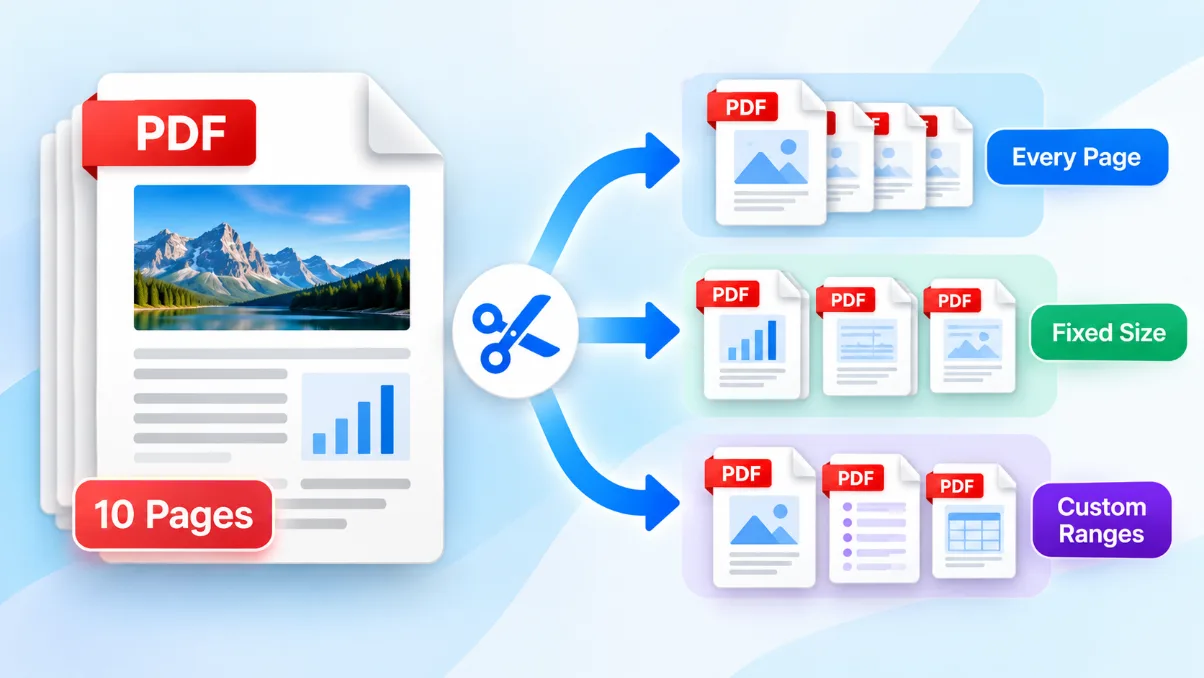
| Extract selected pages | Split PDF | You only need part of a larger document. |
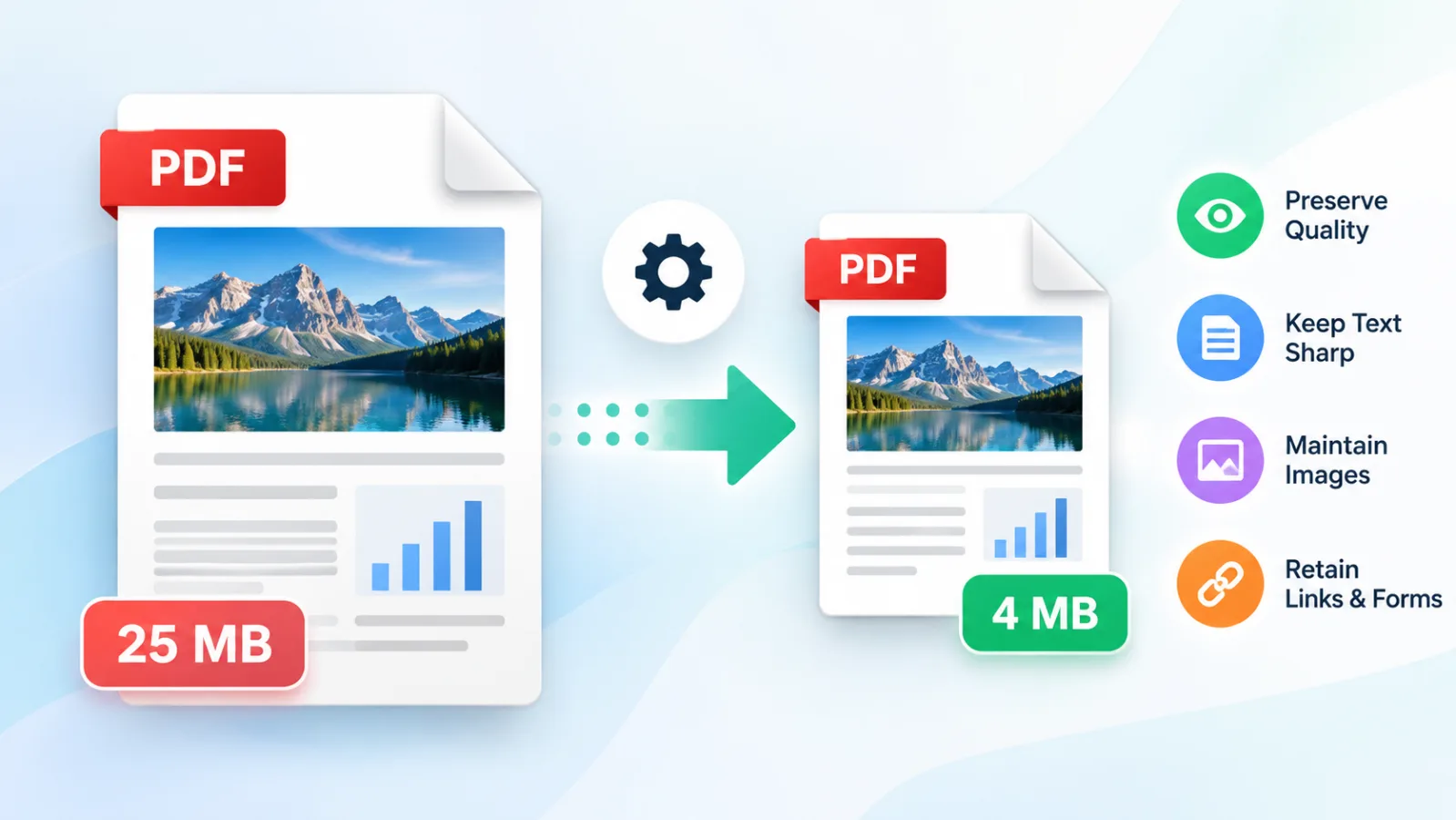
| Reduce the finished document’s file size | PDF Compressor | The merged file is too large for email, storage, or an upload limit. |
| Turn photographs or scans into a PDF | Images to PDF Converter | Your source files are JPG, PNG, or WebP images rather than PDFs. |
If individual pages need attention, organize or split the source documents first. Once the source PDFs are ready, merge them as the final assembly step.
Prepare Your PDF Files Before Merging
A minute of preparation can prevent a confusing result. Open each source file and confirm that it is the document you expect.
Check the following:
- Every file opens without an error.
- The pages inside each PDF are already in the correct internal order.
- No unnecessary blank pages or duplicate pages remain.
- Portrait and landscape pages have the intended orientation.
- The filenames make the documents easy to identify.
- Password protection has been removed when you have permission to do so.
The merger copies all pages from each source PDF. If a five-page report is followed by a two-page appendix, all five report pages will appear before the two appendix pages. It will not rearrange pages inside either document.
If a document is encrypted, unlock an authorized copy with the Unlock PDF tool before adding it to the merger. Keep the protected original in a secure location.
How to Merge PDF Files Into One PDF
1. Open the PDF Merger
Open the PDF Merger in your browser. The merging process runs on your device, so the source files are not uploaded to the Solvioza backend for processing.
2. Add two or more PDF files
Drag your files into the upload area or use Choose PDF Files to select them from your device.
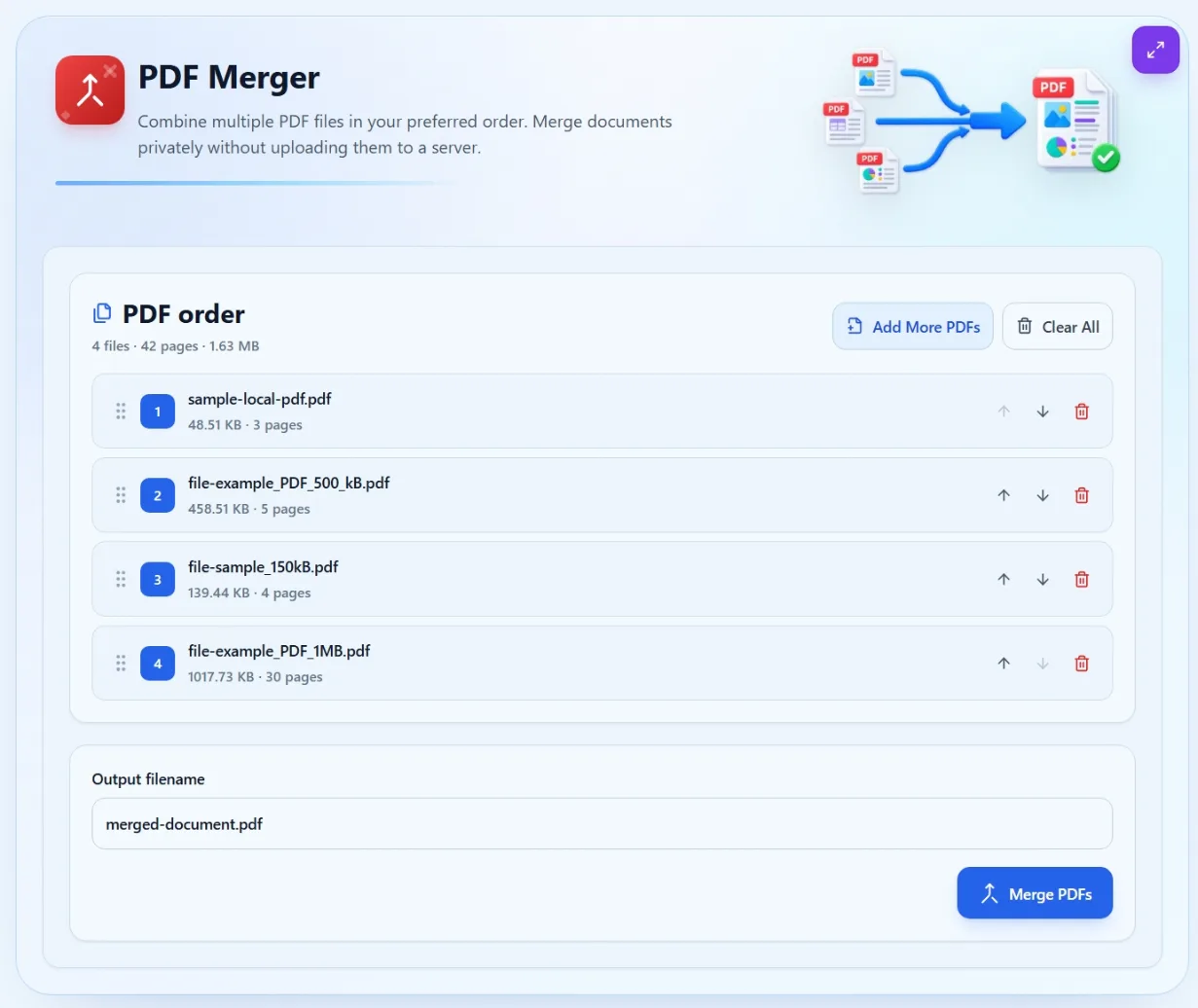
You can combine up to 20 PDFs, provided that their combined input size does not exceed 100 MB. Each accepted file appears with its filename, size, page count, and numbered position.
The tool checks whether each file can be read as a PDF. Empty, damaged, encrypted, or password-protected documents cannot be added successfully.
3. Add any files you missed
Select Add More PDFs if another document belongs in the final package. You do not need to clear the existing list and begin again.
The same source PDF can be added more than once. This is useful in an unusual workflow where the same document deliberately needs to appear in two positions, but check for accidental duplicates before continuing.
4. Arrange the documents in the correct order
The number beside each file shows where it will appear in the merged PDF. Position 1 comes first, followed by position 2, position 3, and so on.
On a desktop computer, drag file cards into position. On a phone, tablet, or keyboard-based workflow, use the Move Up and Move Down controls.
Consider the order from the reader’s point of view. A typical submission might follow this sequence:
- Cover page or application form
- Main report or letter
- Supporting certificates or evidence
- Appendices
- Reference material
There is no universal correct sequence. The correct order is the one required by the recipient or the one that makes the complete document easiest to understand.
5. Choose the output filename
Replace the suggested filename with a descriptive name such as project-proposal-complete.pdf or application-supporting-documents.pdf.
If you omit the extension, the tool adds .pdf automatically. Characters that are unsafe in filenames are removed, and the name is limited to a practical length.
Avoid putting confidential information into the filename. Filenames may be visible in upload histories, email attachments, shared folders, or document-management systems.
6. Merge the PDFs
Select Merge PDFs. The tool reads the source documents, copies their pages in the displayed order, and creates the combined PDF.
Keep the browser tab open until processing finishes. A large number of pages, complex graphics, or limited device memory can make the operation take longer.
7. Download and open the result
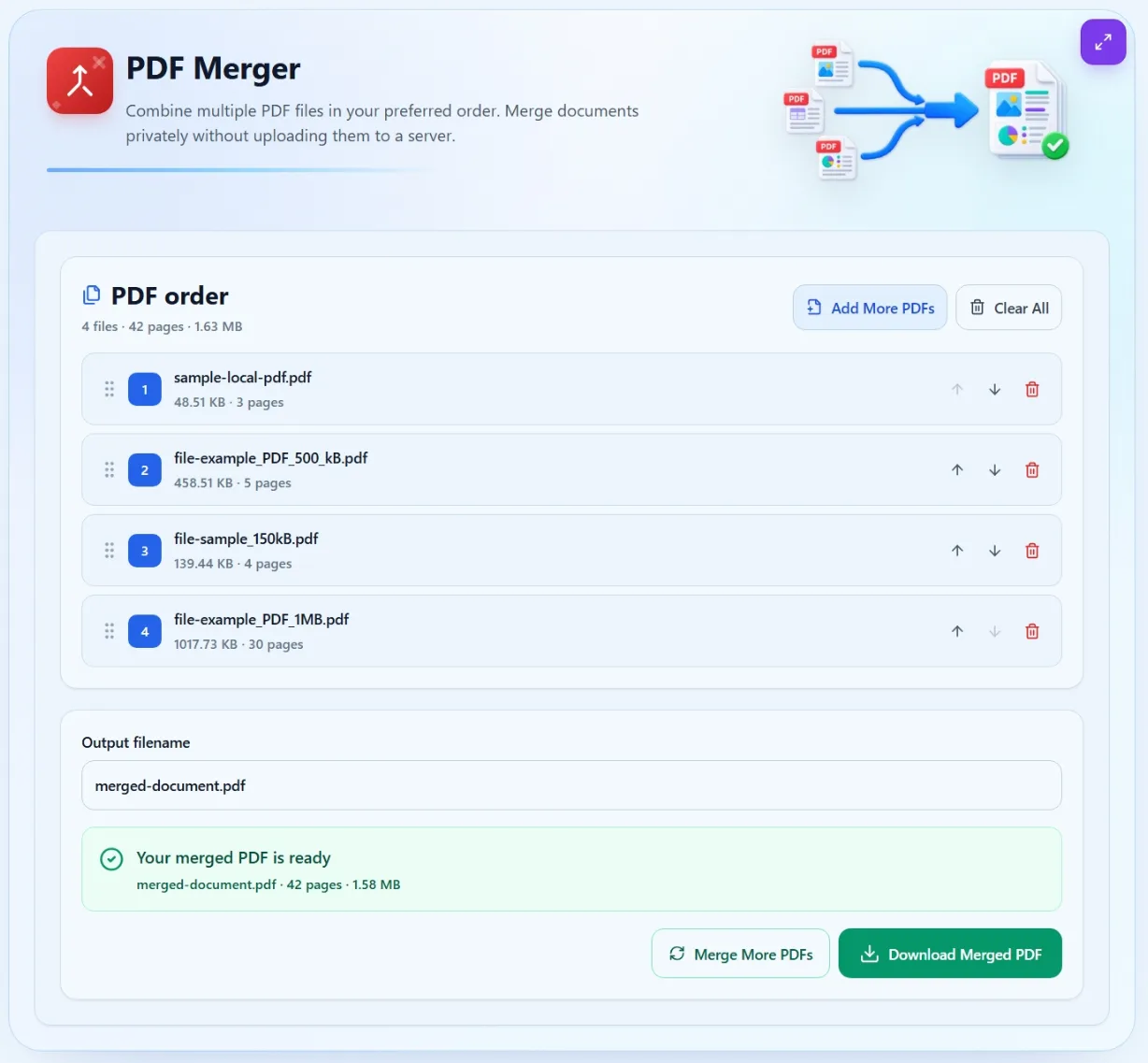
When the merge is complete, the result shows the output filename, total page count, and file size. Select Download Merged PDF to save it.
Do not delete the source documents immediately. Open the merged file first and confirm that it contains the right pages in the right order.
How Document Order Becomes Page Order
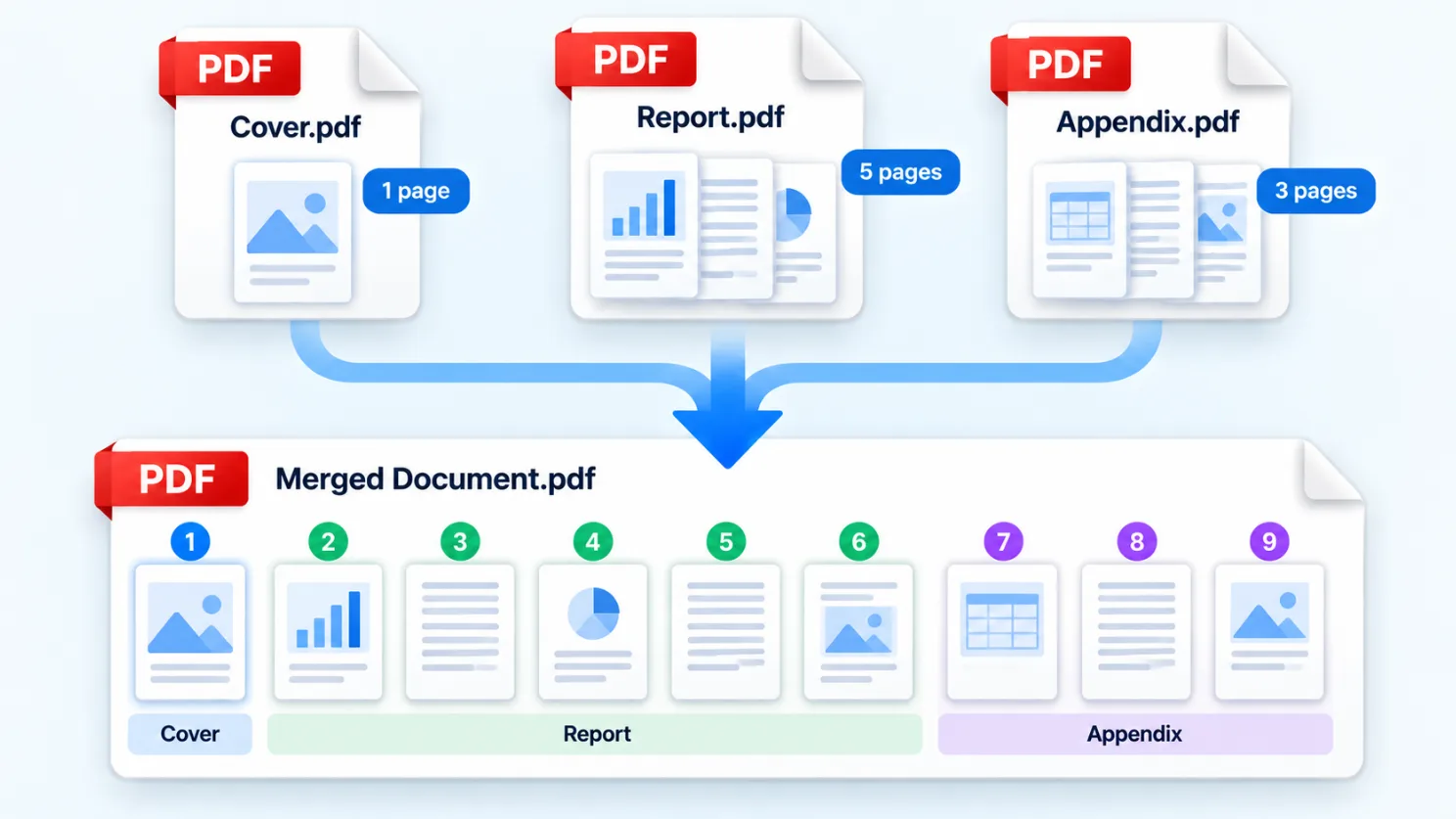
The merger treats every source PDF as an ordered block of pages.
Suppose you add these documents:
- Cover.pdf: 1 page
- Report.pdf: 8 pages
- Appendix.pdf: 3 pages
If they appear in that order, the final document will contain the cover as page 1, the report as pages 2–9, and the appendix as pages 10–12.
Moving Appendix.pdf above Report.pdf moves the complete three-page appendix. It does not move a single appendix page into the middle of the report.
When pages inside one document need to be moved individually, make that change with the PDF Organizer before merging the files.
What Happens to Page Size, Orientation, and Document Features?
PDF pages do not all need to share the same dimensions. A merged file can contain portrait pages, landscape pages, A4 documents, Letter documents, receipts, and other custom page sizes.
| PDF element | What the merger does | What you should check |
|---|---|---|
| Page order | Copies documents in the order shown and retains the internal page order of each source. | Confirm the numbered file list before merging. |
| Page dimensions | Preserves the original dimensions instead of converting every page to one size. | Check whether mixed page sizes are acceptable for printing or submission. |
| Page orientation and rotation | Retains portrait, landscape, and rotated pages. | Open the result and make sure every page faces the intended direction. |
| Visible page content | Copies pages without deliberately flattening them into screenshots. | Review text, images, diagrams, and unusual fonts. |
| Bookmarks and attachments | Document-level navigation and attached files may not be preserved. | Rebuild or verify these features when they are important. |
| Forms, scripts, and interactive elements | May not behave exactly as they did in the source PDFs. | Test every required field, button, link, annotation, or script. |
| Digital signatures | Creating a new combined document can invalidate existing cryptographic signatures. | Keep signed originals and confirm the recipient’s requirements. |
For ordinary reports, scans, applications, and reference documents, page order and visible content are usually the main concerns. Files with legal signatures, advanced forms, embedded attachments, or other specialized features require more careful checking.
Common Problems When Combining PDFs
A file is password-protected
The merger cannot copy pages from an encrypted PDF without access to its contents. If you own the document or are authorized to modify it, remove the password first and add the unlocked copy.
A PDF is damaged or unreadable
A filename ending in .pdf does not guarantee that the file contains a valid PDF document. Try opening it in another PDF reader. If it does not open there either, obtain a clean copy or export it again from the original application.
The documents appear in the wrong order
Return to the numbered file list and arrange the complete documents before merging again. Remember that each item represents an entire PDF, not an individual page.
The browser runs out of memory
PDF merging happens locally, so available device memory matters. Close unused tabs, try a desktop computer, or combine fewer documents at a time. If one source file contains pages you do not need, extract the relevant section before merging.
The final PDF is larger than expected
Merging joins documents; it does not automatically compress their images or other resources. The final file may be close to the combined size of its sources and can occasionally contain additional document overhead.
Once you have checked the completed document, use the PDF Compressor if it needs to meet an email or upload limit. The guide on compressing a PDF without losing quality explains how to choose a suitable setting and inspect the result.
Check the Merged PDF Before Sharing It
A successful download is not the same as a verified document. Open the final PDF and perform a short review:
- Compare its total page count with the combined source-page count.
- Check that the first and last pages belong where expected.
- Move through every transition between source documents.
- Confirm that portrait, landscape, and rotated pages display correctly.
- Inspect small text, diagrams, photographs, and scanned signatures.
- Test any links, form fields, or annotations that the recipient needs.
- Make sure the filename is clear and does not expose private information.
- Check the recipient’s file-size and page-size requirements.
If the document is intended for printing, preview it using the printer’s actual paper settings. Mixed page dimensions can be correct inside the PDF but may require deliberate scaling during printing.
Turn Separate PDFs Into One Ordered Document
Merging PDFs is straightforward once the source files are ready. Add the documents, arrange them in the order a reader should receive them, choose a useful filename, and inspect the combined file before sending it.
Use the Solvioza PDF Merger to combine up to 20 PDF files locally in your browser. Keep the originals until you have confirmed the page order, total count, orientation, and any document features that matter.