How to Resize a Facebook Profile Picture or DP Without Cropping Problems
A Facebook profile picture, also called a Facebook DP in many regions, is one of the most visible elements of any account, page, group, or brand profile. It appears in comments, messages, search results, friend lists, posts, profile views, and small circular thumbnails across Facebook. Because of this constant visibility, even small mistakes in cropping, sizing, or alignment can make a profile look less professional.
Many users upload images directly without preparing them for Facebook's circular display system. As a result, they often face issues such as:
- Cropped faces or logos
- Blurry or pixelated images
- Poor alignment inside the circular frame
- Important details cut off at the edges
- Profile pictures that look fine large but unclear in comments or messages
The good news is that these issues can be avoided by properly cropping, resizing, previewing, and preparing the image before uploading it to Facebook.
In this guide, you will learn the correct Facebook profile picture size, why square images work best, how to use the dedicated Solvioza Facebook Profile Picture Resizer, and how to use the general Solvioza Image Resizer when you need more manual control.
Video Guide: Resize Facebook Profile Picture with the Dedicated Tool
This new video can show the recommended workflow using the dedicated Solvioza Facebook Profile Picture Resizer, including upload, crop, circular preview, safe area checking, and download.
What Is the Correct Facebook Profile Picture Size?
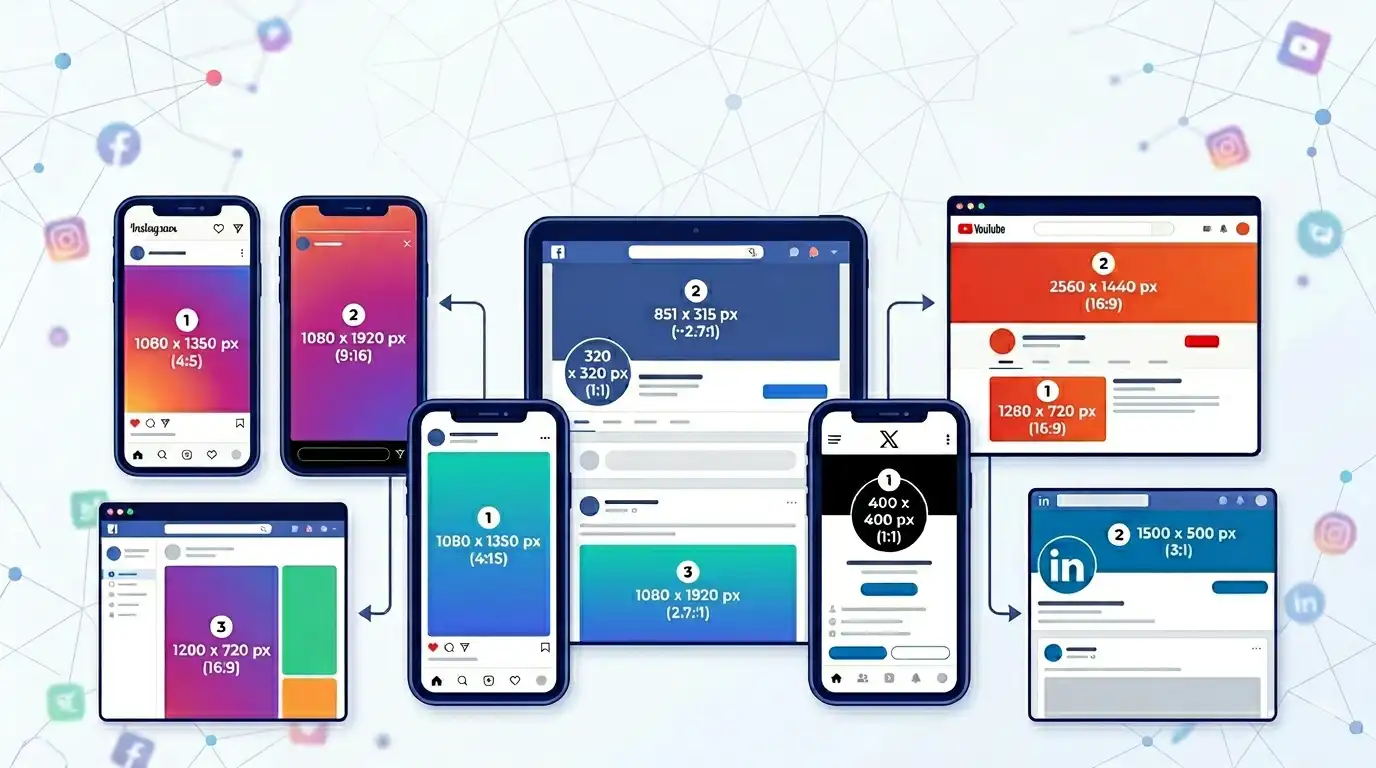
Facebook profile pictures are displayed in a circular frame, but the original uploaded image should usually be square. A square image gives Facebook a balanced source file and reduces the chance of uneven cropping.
Recommended Facebook profile picture size:
- 1080 × 1080 pixels for high-quality profile photos and Facebook DP images
- 320 × 320 pixels as a smaller acceptable profile image size
- 2048 × 2048 pixels if you want a larger high-quality export for future reuse
Recommended aspect ratio:
- 1:1 square format
A square image ensures that Facebook can crop and scale the image more predictably without distorting the subject. This is especially important for portraits, logos, brand marks, creator photos, and business page profile pictures.
Why Square Images Work Best for Facebook Profile Pictures
Facebook does not always display profile pictures as squares. In most visible areas, Facebook shows profile photos inside a circular frame. This circular display affects how faces, logos, and text appear.
Because of this:
- Only the center of the image is fully safe
- Outer corners are hidden in circular display
- Edges may be cropped or visually ignored
- Non-square images can be cropped unevenly
A square image solves this problem by creating a balanced safe zone around the subject. It helps your Facebook profile picture or Facebook DP look more consistent across desktop, mobile, comments, Messenger, feeds, search results, and profile pages.
Square images help ensure:
- Consistent cropping across devices
- Better control over subject positioning
- No unexpected cutting of faces or logos
- Cleaner circular profile picture preview
- Better appearance in small thumbnail views
Best Tool: Use Solvioza Facebook Profile Picture Resizer
The easiest method is to use the dedicated Solvioza Facebook Profile Picture Resizer. This tool is built specifically for Facebook profile pictures, Facebook DP images, page profile photos, group profile images, and brand profile visuals.
Unlike a general image resizing tool, it includes the profile-picture workflow in one place: upload, crop, zoom, position, circular preview, safe area guide, output size selection, format selection, and download.
Why this dedicated tool is better for Facebook DP resizing:
- It opens a cropper so you can select the desired part of the image first
- It shows a circular preview so you can see how Facebook may display the image
- It includes a safe area guide to avoid cutting faces, logos, or text
- It supports profile-ready square exports
- It also allows optional circular image download if needed
- It supports JPG, PNG, and WebP output formats
- It includes common sizes like 320 × 320, 1080 × 1080, and 2048 × 2048 pixels
How to Resize Facebook Profile Picture Using Solvioza Facebook Profile Picture Resizer
Step 1: Open the Facebook Profile Picture Resizer
Go to the Facebook Profile Picture Resizer tool on Solvioza. This is the recommended tool when your main goal is to prepare a Facebook profile photo or Facebook DP.
Step 2: Upload Your Image
Upload a clear JPG, PNG, or WebP image from your device. For best results, start with a high-resolution image. If the original image is too small or blurry, resizing cannot fully restore sharpness.
Step 3: Crop the Desired Area
After uploading, crop the part of the photo you want to use. This step is important because Facebook profile pictures work best as square images. For personal profiles, keep the face centered. For business pages or logos, keep the logo inside the main safe area.
Step 4: Adjust Zoom and Position
Use the zoom and drag controls to position the image properly. The subject should stay in the center of the frame with enough spacing around the edges. Avoid placing important details too close to the corners because Facebook's circular display may hide them.
Step 5: Check the Circular Preview
The circular preview helps you understand how the profile picture may appear on Facebook. This is useful because the downloaded image is usually square, but Facebook visually displays it as a circle in many places.
Step 6: Choose Output Size and Format
Select the output size you need. For most users, 1080 × 1080 pixels is a strong choice because it gives better quality while staying practical for upload. You can export as JPG, PNG, or WebP depending on your image type.
Step 7: Download the Final Image
Download the final square image and upload it to Facebook. If you specifically need a round image file for another use, enable the optional circular download setting before exporting.
Square Download vs Circular Download
For Facebook uploads, the square download is usually the best option. Facebook uses the uploaded square image as the source and then displays it inside circular frames across the platform.
The circular preview is mainly for checking how the image will look after Facebook visually clips it. A circular download is useful only when you need a round image file for another purpose, such as website avatars, design mockups, profile graphics, or branding assets.
Alternative Method: Use Solvioza Image Resizer
You can also prepare a Facebook-ready profile picture using the general Solvioza Image Resizer. This method is useful when you want more general resizing control or when you are preparing images for multiple platforms, not only Facebook.
Alternative Video Guide: Resize Facebook Profile Picture with Image Resizer
This existing video shows the older method using the general Solvioza Image Resizer. This method is still useful when you want general image resizing control beyond Facebook profile photos.
Step 1: Upload Your Image
Open Solvioza Image Resizer and upload your image. Choose a clear, high-resolution image for best results.
Step 2: Crop the Image to Square Format
If your image is not already square, crop it first. A square crop ensures proper framing before resizing. You can also use the dedicated Image Cropper Tool if you need a separate cropping workflow.
Step 3: Set the Correct Dimensions
After cropping, resize the image to:
- 1080 × 1080 pixels for recommended quality
- 320 × 320 pixels for a lighter version
Always maintain equal width and height. A 1:1 ratio is important for Facebook profile pictures and Facebook DP images.
Step 4: Adjust Positioning Before Export
Before downloading, make sure the subject is centered, there is enough spacing around the edges, and no important elements are near the corners. This helps prevent Facebook's circular display from cutting anything important.
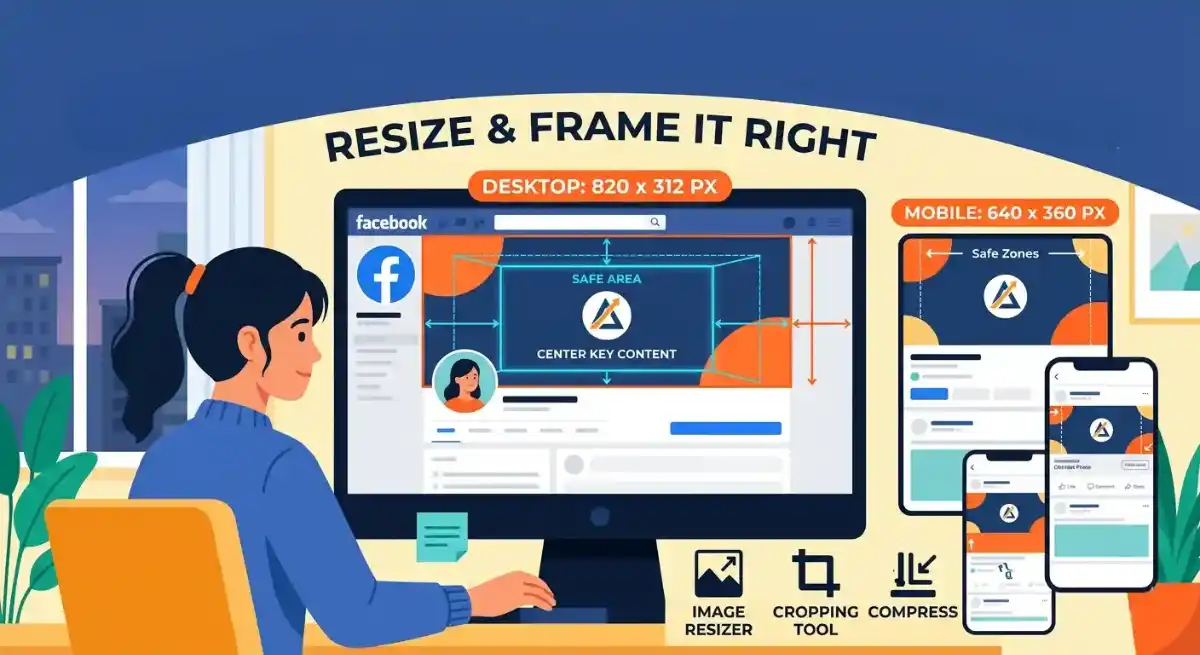
Facebook Profile Picture Safe Zone
A common mistake is placing faces, logos, or text too close to the edges. Since Facebook often displays profile pictures as circles, you should always assume that the outer corners will not be visible.
The safest area of a Facebook profile picture is near the center.
Safe design rules:
- Keep the subject centered
- Leave padding around the subject
- Avoid placing text near edges
- Do not crop too tightly
- Use a square image before uploading
- Preview the circular result whenever possible
This simple adjustment prevents most Facebook profile picture cropping issues.
Optional Step: Compress Image for Faster Upload
You can optionally reduce file size using Solvioza Image Compressor. Compression helps when the file size is too large, upload speed is slow, or you want a lighter image for web use.
However, avoid over-compression. Too much compression can reduce clarity, especially for faces, logos, text, and brand marks. If your profile picture contains a face or logo, always preview the final image before uploading.
How to Avoid Facebook Profile Picture Cropping Issues
Most cropping problems happen because the image is not prepared before upload. Facebook may display the image differently across mobile, desktop, comments, posts, and profile views, so preparation matters.
Avoid these mistakes:
- Uploading non-square images
- Placing subjects too close to edges
- Using low-resolution images
- Over-compressing images
- Ignoring circular preview behavior
- Adding too much text or small detail
- Using logos without enough padding
Best practice checklist:
- Use a square image with 1:1 ratio
- Keep the subject centered
- Use 1080 × 1080 pixels when possible
- Leave proper padding around the subject
- Preview the image in a circular frame
- Download a square image for Facebook upload
What Makes a Good Facebook Profile Picture?
A strong Facebook profile picture should be recognizable even at small sizes. This is important because people often see your profile image in comments, Messenger, search results, and notifications before they see the full profile page.
For personal profiles:
- Clear face visibility
- Good lighting
- Simple background
- Centered framing
- Enough space around the head and shoulders
For business pages or brands:
- Clean logo design
- High contrast
- Easy brand recognition
- Simple shapes that remain clear at small sizes
- Padding around the logo to avoid circular cropping
General best practices:
- Keep it simple
- Avoid clutter
- Use a high-quality source image
- Avoid tiny text
- Check the circular preview before uploading
Recommended Tools for Facebook Image Preparation
- Facebook Profile Picture Resizer - best for Facebook DP, profile photos, page profile images, circular preview, and safe area checking.
- Image Resizer - useful for general image resizing across different platforms and dimensions.
- Image Cropper - useful when you need to manually crop an image before resizing.
- Image Compressor - useful when you need to reduce file size before uploading or sharing.
Related Guides
To improve your social media image optimization workflow, you may also find these helpful:
- How to Resize an Image for a Facebook Cover Photo
- Best Social Media Image Sizes for Instagram, Facebook, YouTube, and More
Step-by-Step Workflow Summary
Here is the recommended workflow for the easiest result:
- Open Solvioza Facebook Profile Picture Resizer
- Upload your image
- Crop the desired square area
- Adjust zoom and position
- Check the circular preview and safe area
- Choose 1080 × 1080 pixels for high quality
- Select JPG, PNG, or WebP output
- Download the square image
- Upload it to Facebook as your profile picture or DP
Frequently Asked Questions
What is the best Facebook profile picture size?
The recommended size is 1080 × 1080 pixels with a 1:1 square aspect ratio. This gives a good balance of quality and practical upload size.
What does Facebook DP mean?
Facebook DP usually means Facebook display picture. It refers to the same thing as a Facebook profile picture.
Why does Facebook crop my profile picture?
Facebook often displays profile pictures in a circular frame. If the image is not square, centered, or properly prepared, parts of the image may be cropped out.
How do I prevent Facebook profile picture cropping issues?
Use a square image, keep the subject centered, avoid placing important details near the edges, and preview the image in a circular frame before uploading.
Should I upload a square or circular image to Facebook?
In most cases, upload a square image. Facebook will display it as a circle where needed. A circular file is only necessary if you specifically need a round image for another use.
What format is best for Facebook profile pictures?
- JPG is useful for normal photos and portraits
- PNG is useful for logos, graphics, and sharper edges
- WebP is useful for modern web-friendly image output
Can I resize a Facebook profile picture online for free?
Yes. You can use Solvioza Facebook Profile Picture Resizer to crop, resize, preview, and download a Facebook-ready profile image online.
Final Thoughts
Resizing a Facebook profile picture is not just about changing dimensions. It is about preparing the image for Facebook's circular display system so the final result looks clean, centered, and professional.
A properly optimized Facebook profile picture ensures:
- Better visual quality
- No unwanted cropping
- Clearer appearance in small thumbnails
- More professional presentation
- Better results for personal profiles, pages, groups, and brands
Best practice summary:
- Use 1080 × 1080 pixels when possible
- Keep the subject centered
- Use high-quality source images
- Avoid over-compression
- Always preview before uploading
- Use the dedicated Facebook Profile Picture Resizer for the easiest workflow
By using the Solvioza Facebook Profile Picture Resizer, you can crop, resize, preview, and download a profile-ready image in one place, making sure your Facebook DP looks clean, sharp, and properly centered before upload.